Dial *#06#. If an EID code appears, the phone has an eSIM. It must not be locked to a carrier.
02
Internet on
Connect to Wi-Fi, or use your current SIM data. The phone downloads the eSIM over the internet. Turn any VPN off while you install.
03
The QR code on another screen
Open the email on a laptop, a tablet or another phone. Only have this phone? Enter the code manually, in the No QR code section.
04
When to install
Install the eSIM before you travel, while you still have Wi-Fi. Validity starts at activation, as described in the plan.
Install the eSIM
Follow the steps in order. The pictures show the phone screens; what you tap is outlined in blue. Menu names on your phone follow its language.
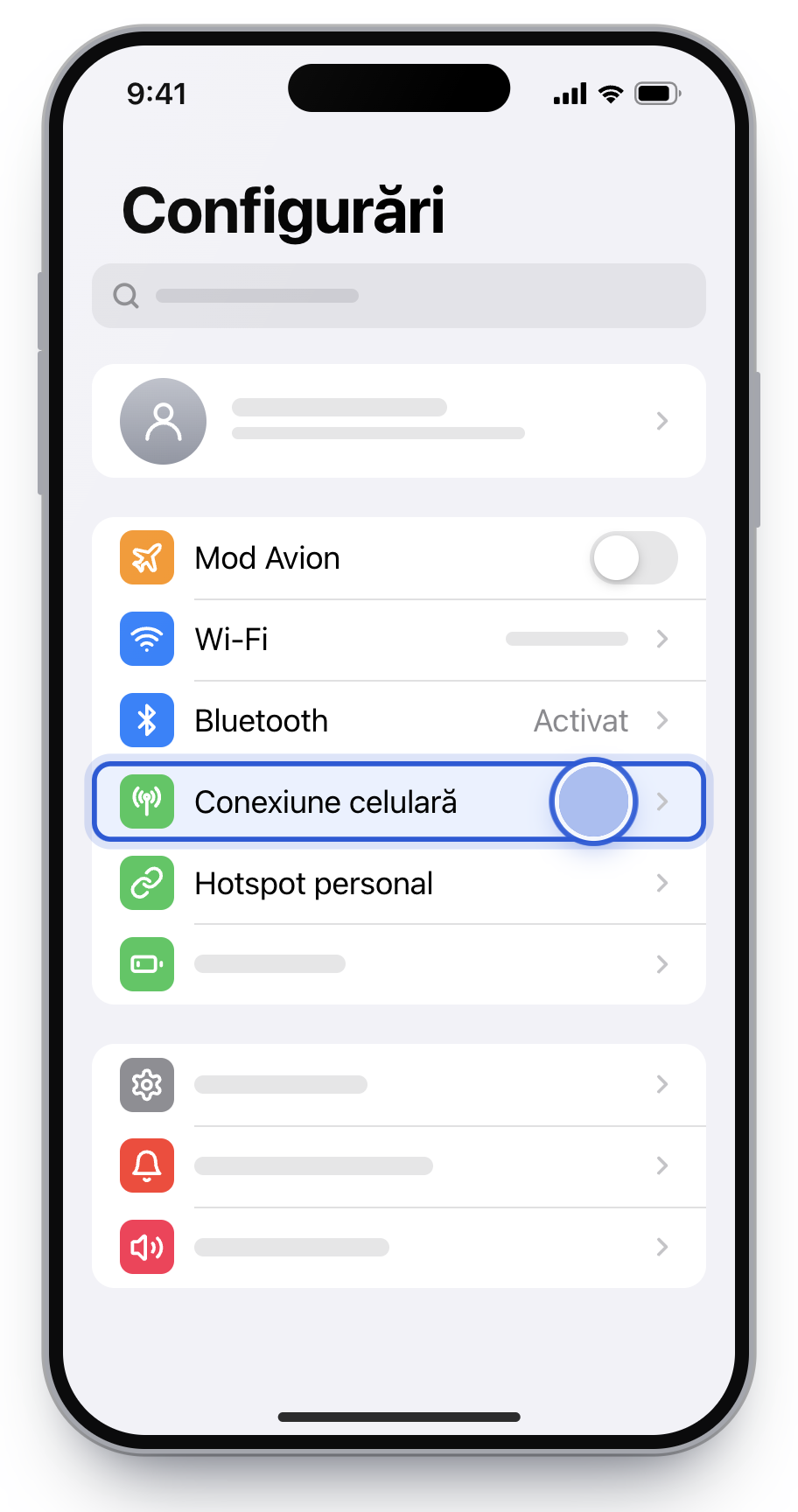
1
Open Settings and tap Cellular.
On iPad or older iOS, the menu is called Mobile Data or Cellular Data.
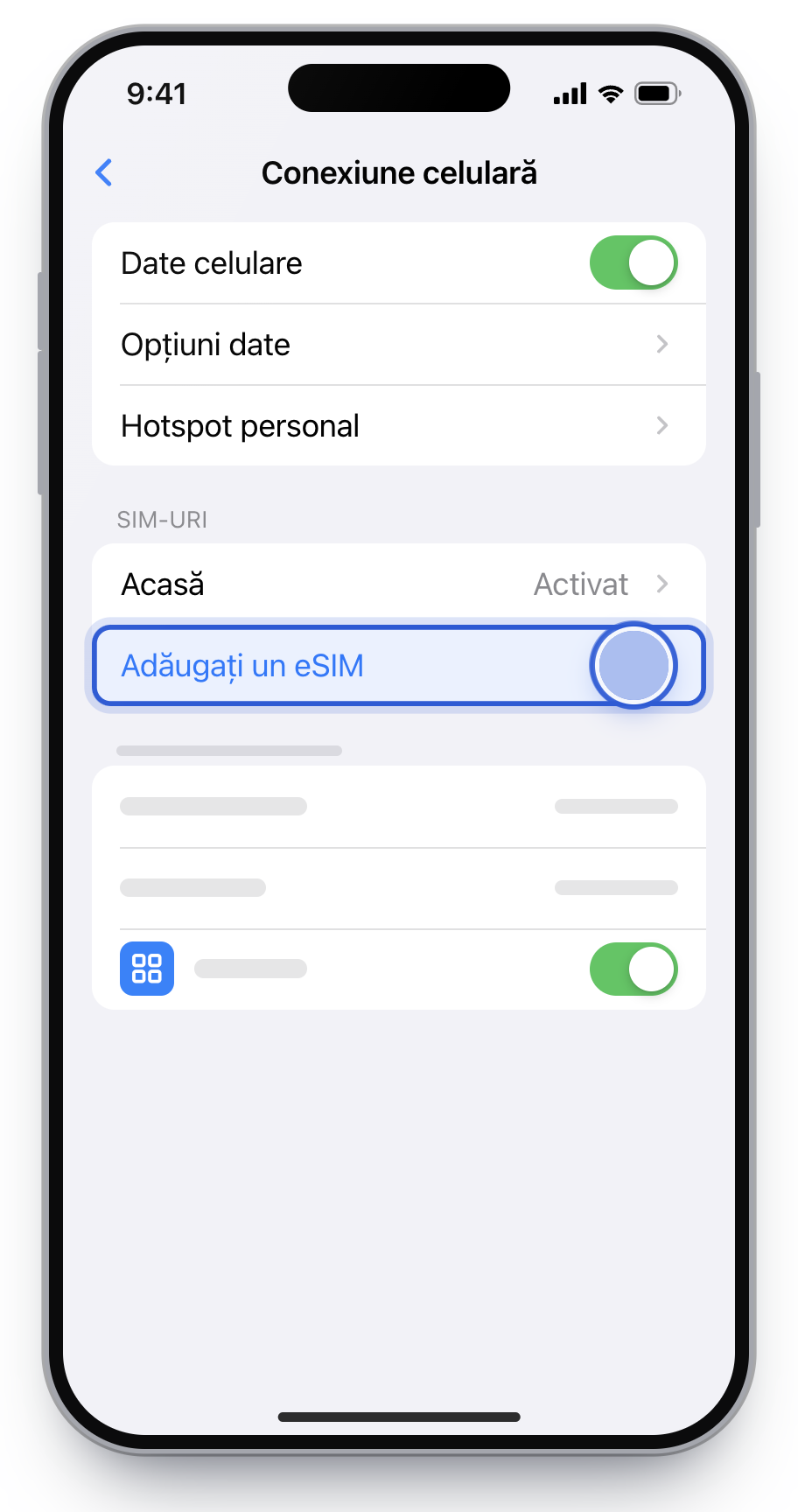
2
Tap Add eSIM.
No line active yet? The option is called Set Up Cellular.
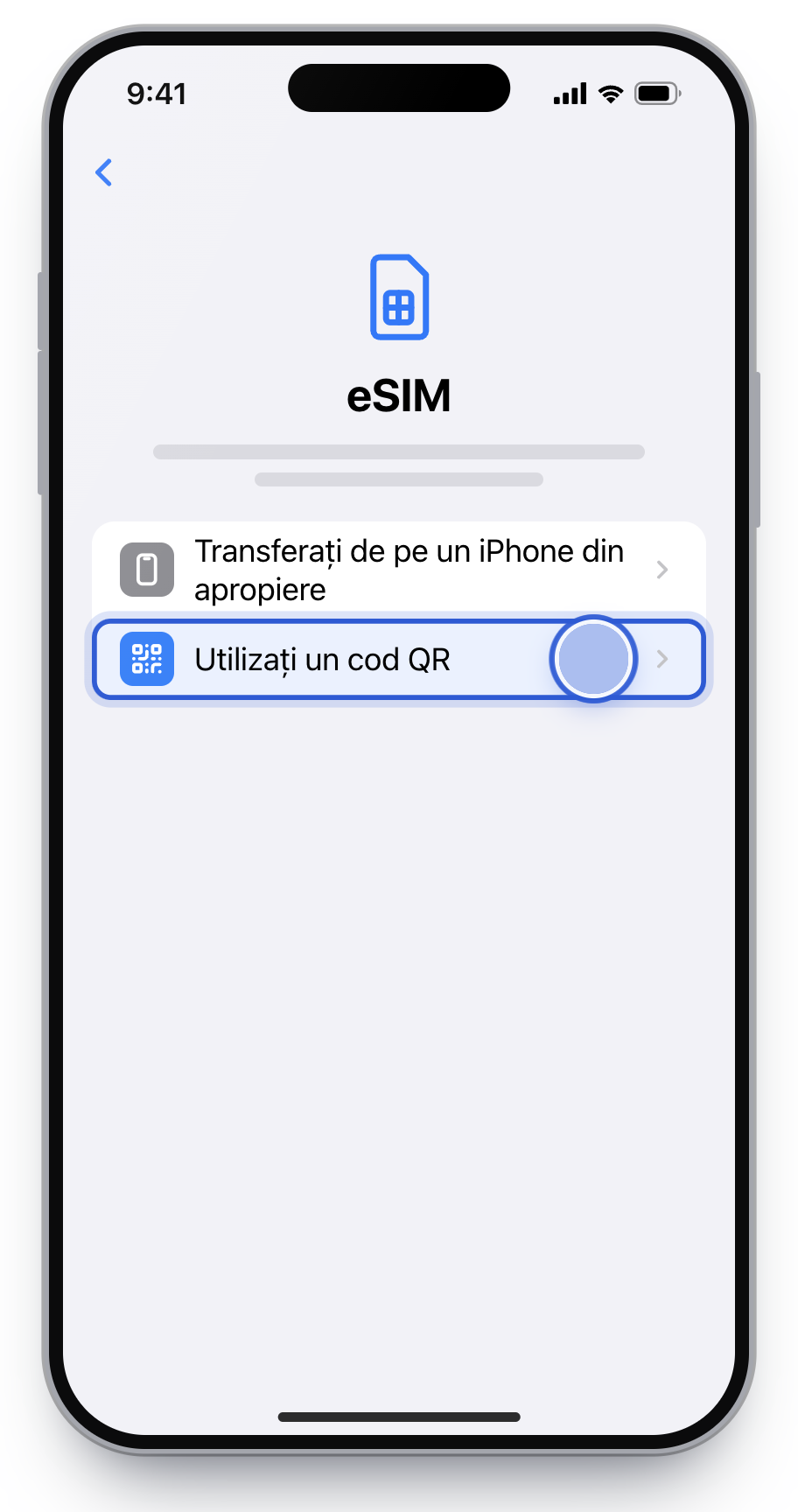
3
Choose Use QR Code.
If you do not see it, tap Other Options first.
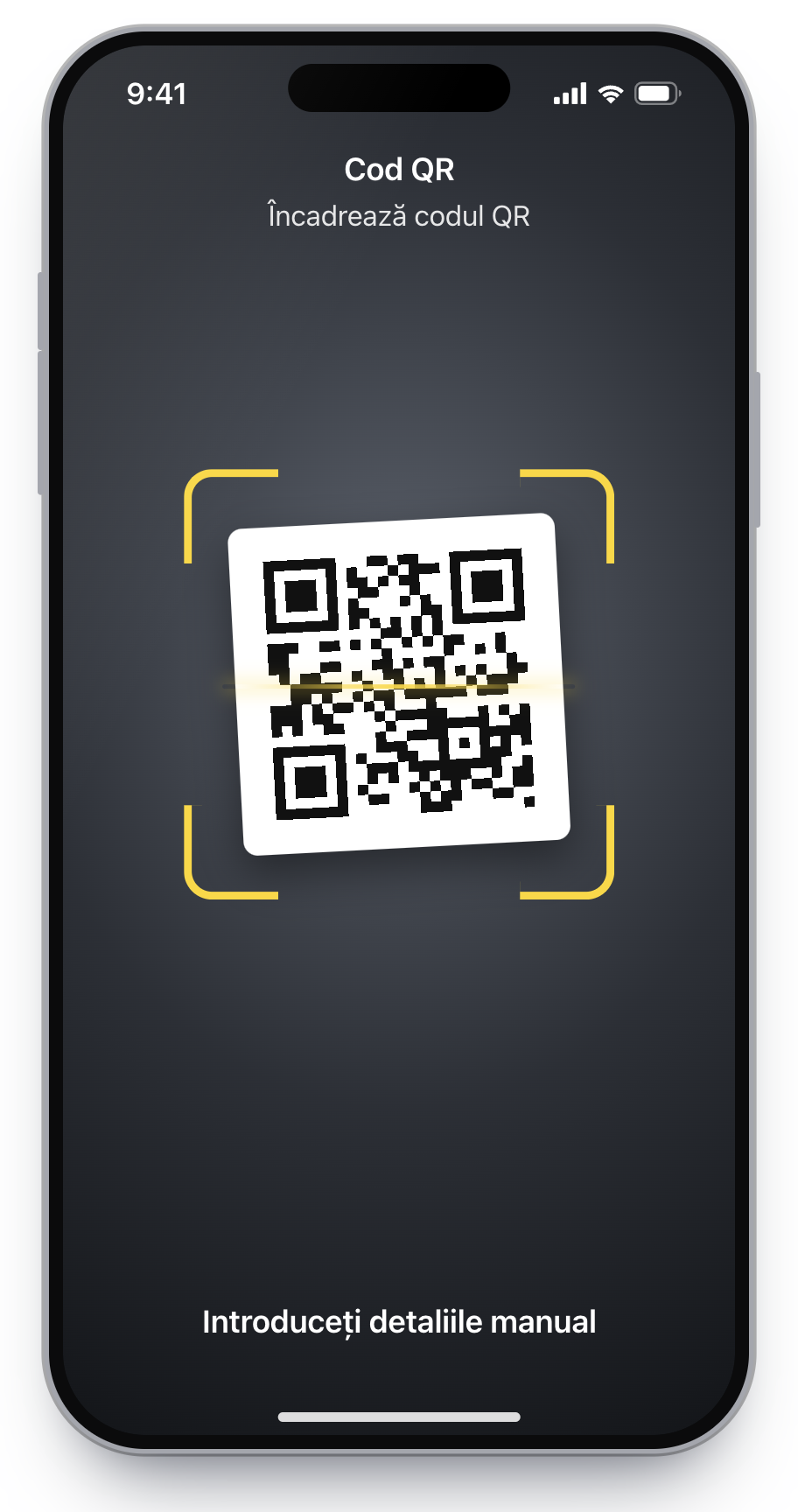
4
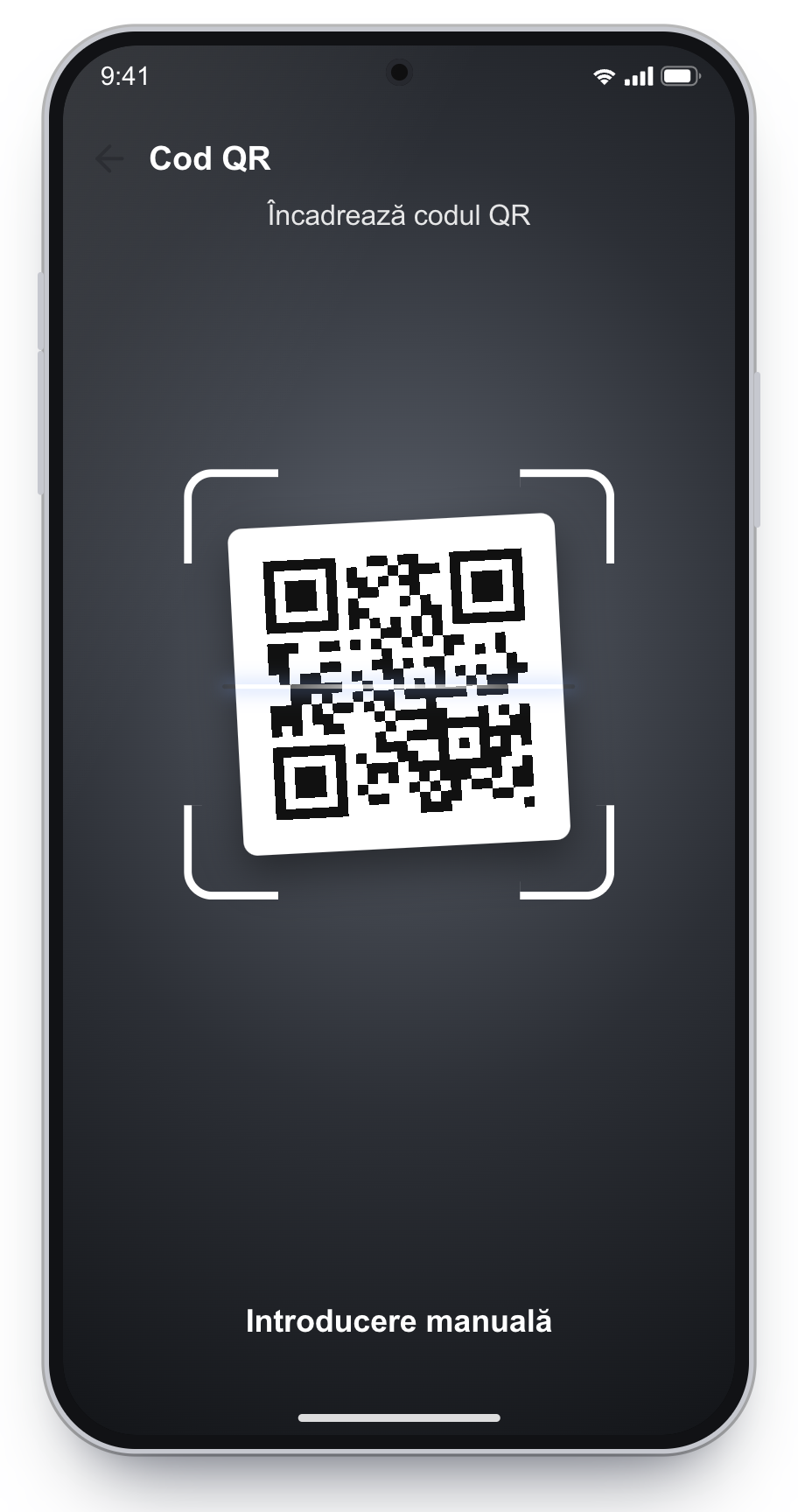
Scan the QR code from the email. Keep the whole code inside the frame.
Scan fails? Tap Enter Details Manually.
5
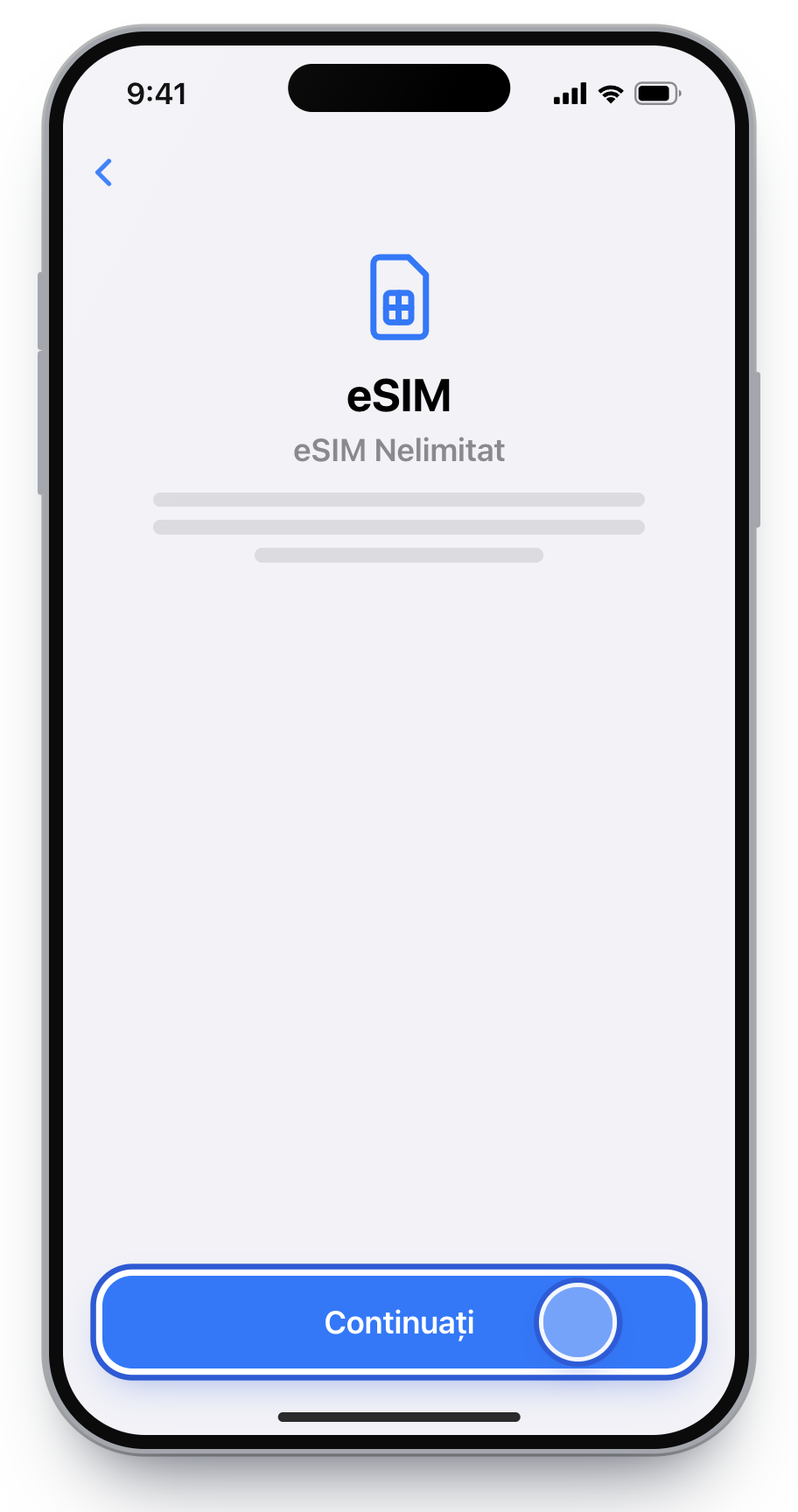
Tap Continue and wait for activation. It can take a minute. Leave the screen open.
6
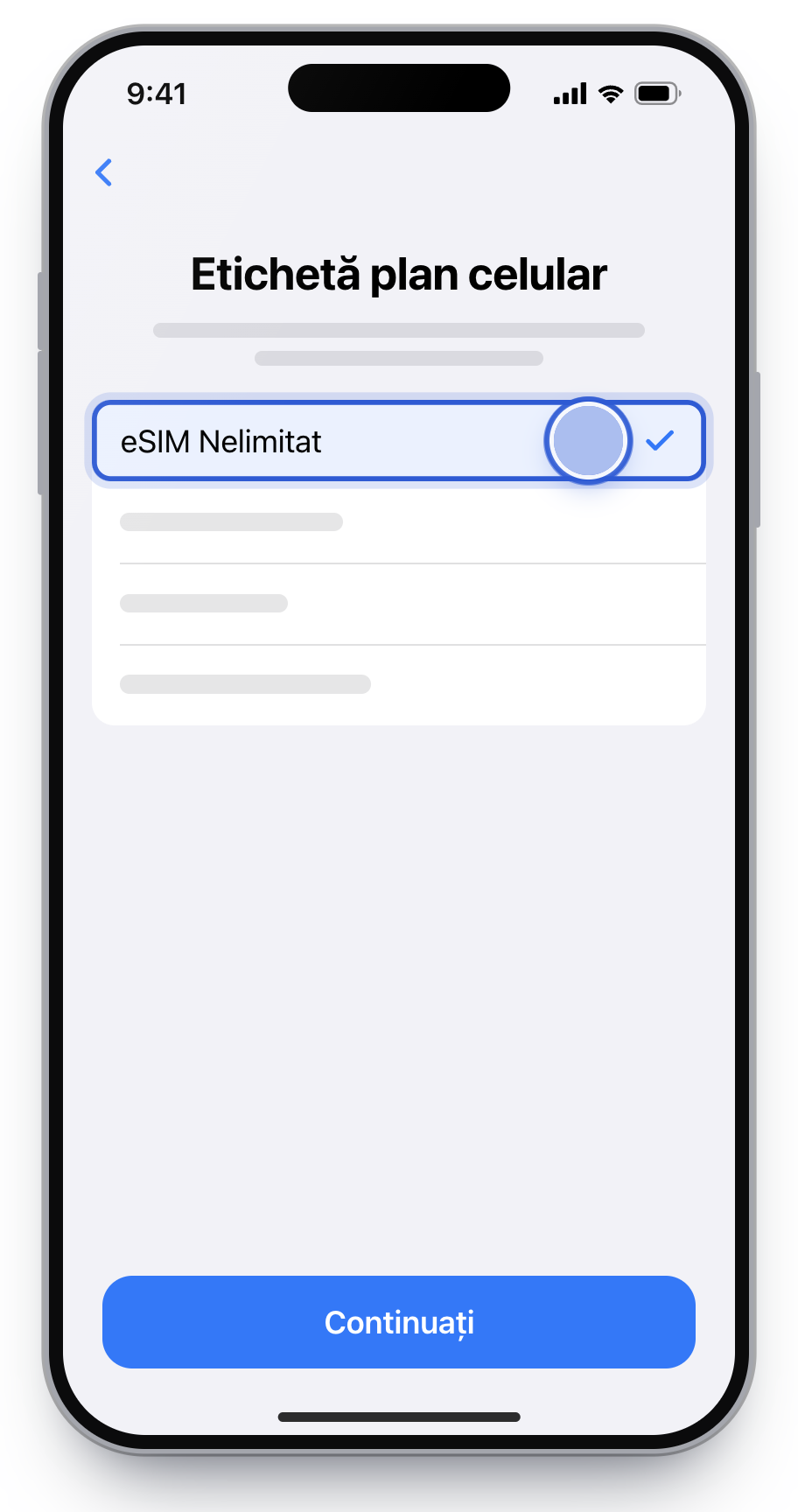
On Cellular Plan Label, name the line eSIM Nelimitat.
7
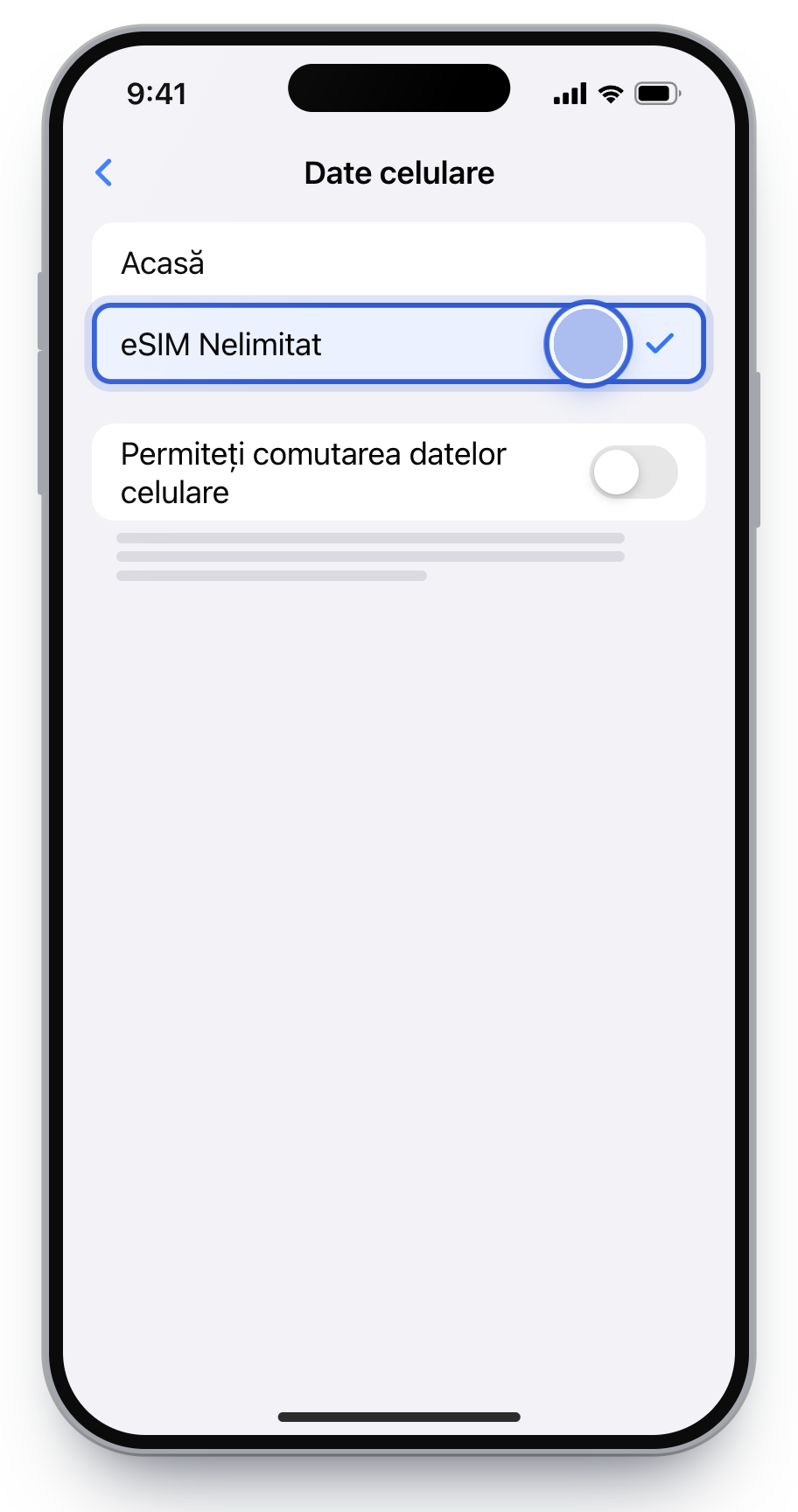
Keep your home line for calls, SMS and iMessage. Under Cellular Data, choose eSIM Nelimitat.
Leave Allow Cellular Data Switching off, so the iPhone does not fall back to your home SIM data.
No QR code: enter it manually
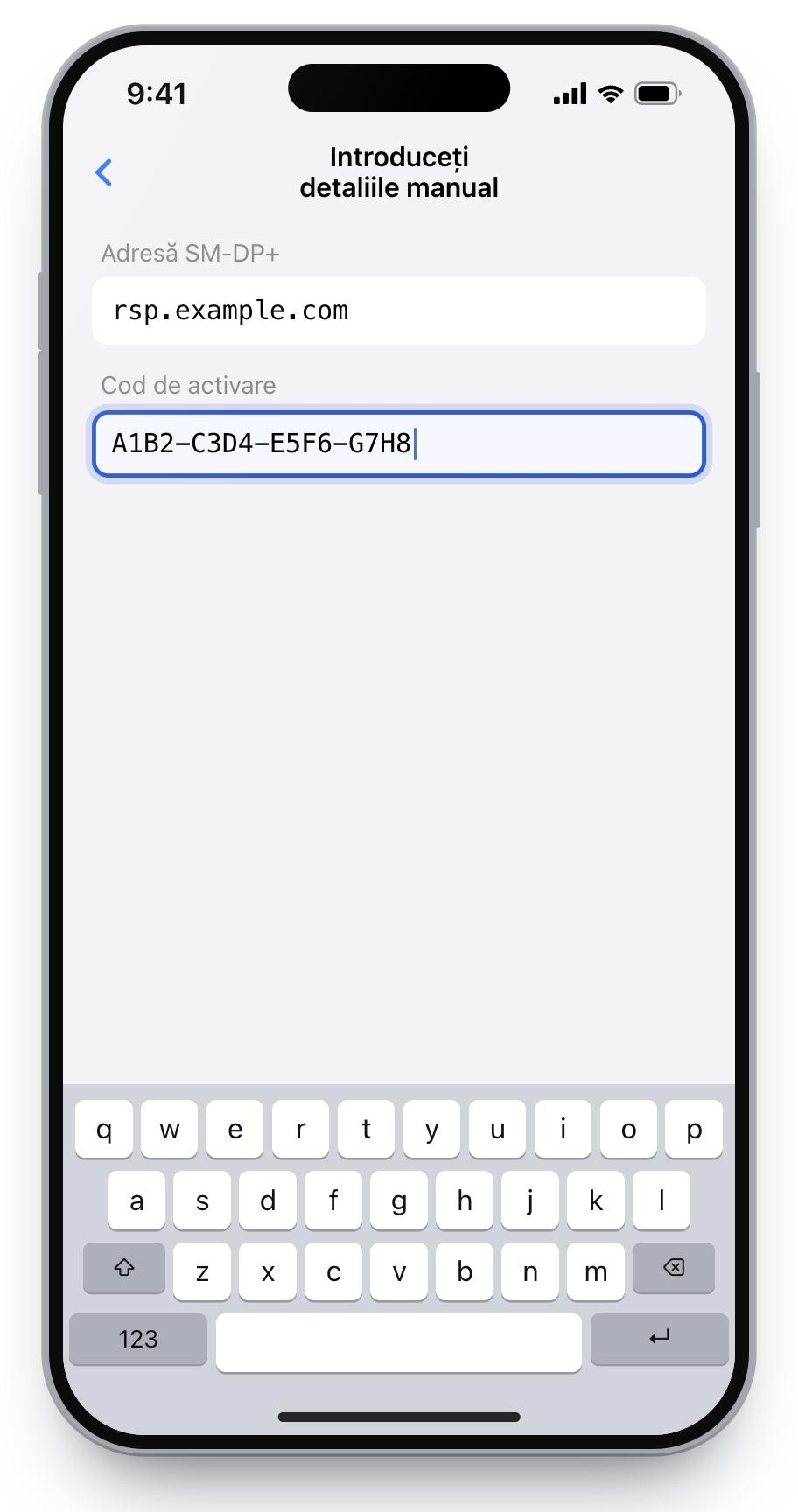
SM-DP+ Address and Activation Code, when the phone asks for two fields
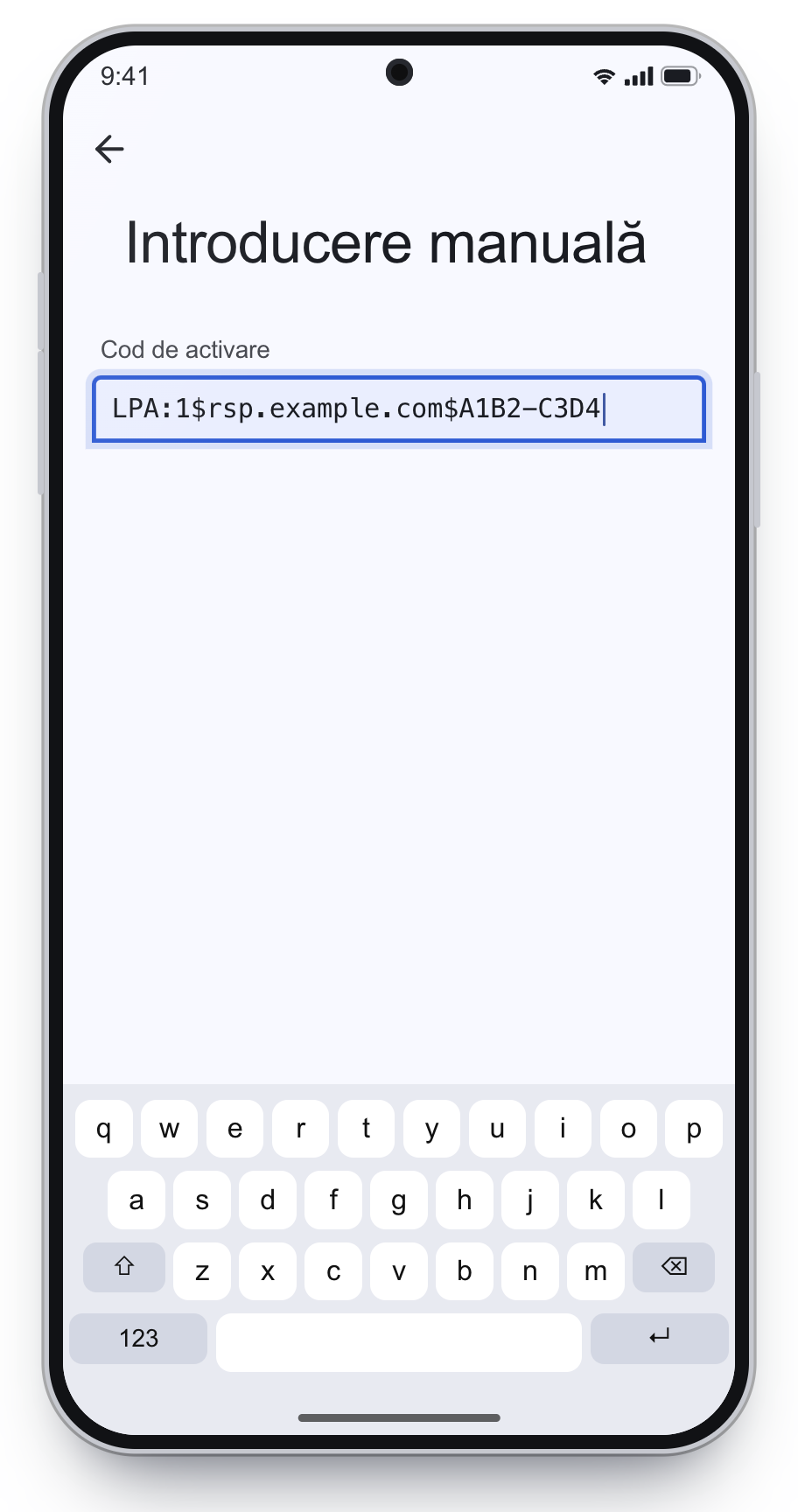
The LPA code, when the phone asks for one code. It starts with LPA:1$
On step 4, on the camera screen, tap Enter Details Manually.
Enter the details from the email, then continue as in step 5.
Copy the codes exactly, with no spaces at the start or the end. Easiest: long-press the code in the email, tap Copy, then paste it into the field.
Turn it on: line, mobile data and roaming
After installation, the eSIM has to be on and selected for internet. Calls and SMS stay on your home SIM.
8
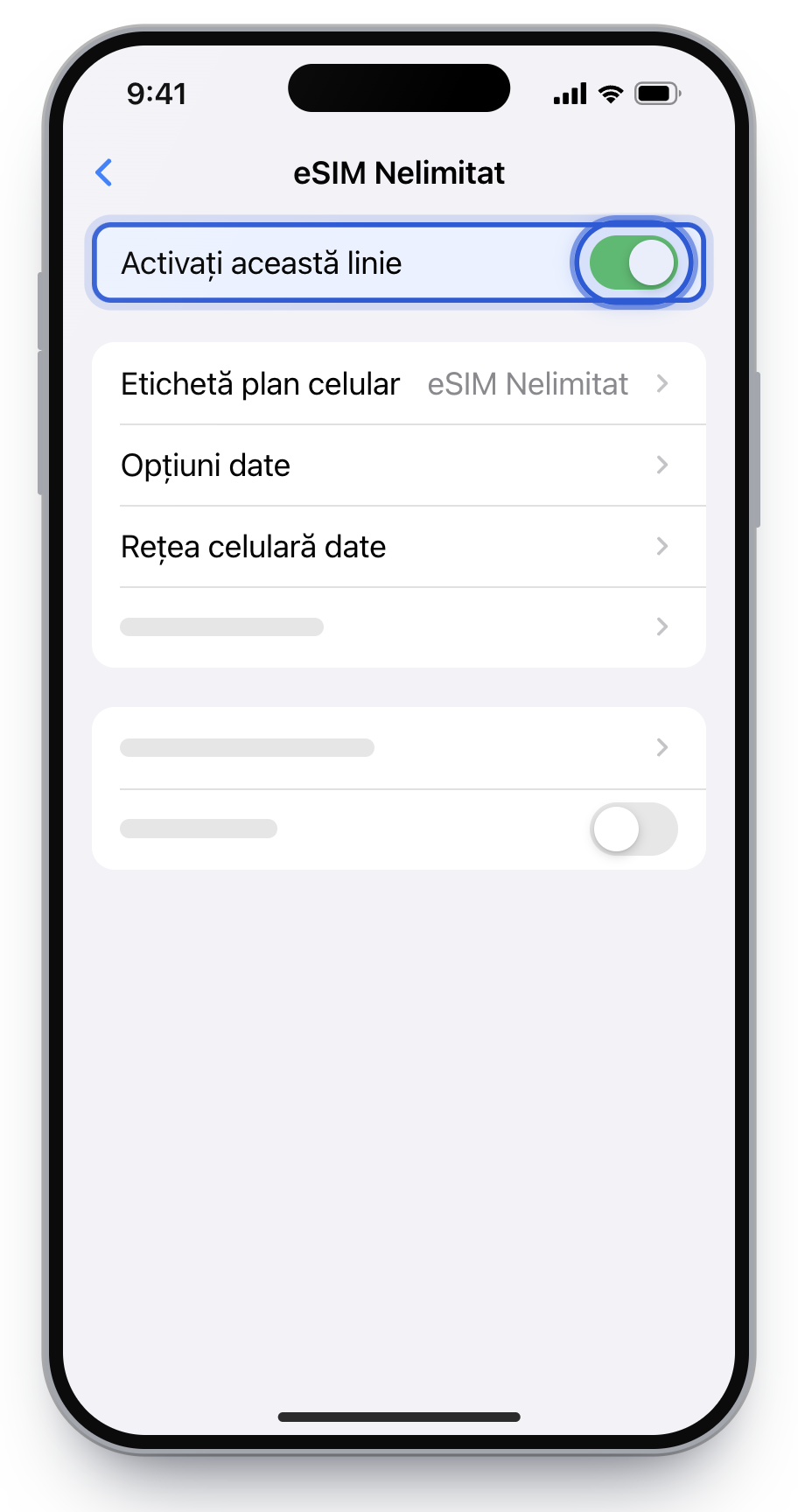
Check the line: Settings → Cellular → eSIM Nelimitat. Turn On This Line must be on.
Also in Cellular, eSIM Nelimitat must be selected under Cellular Data.
9
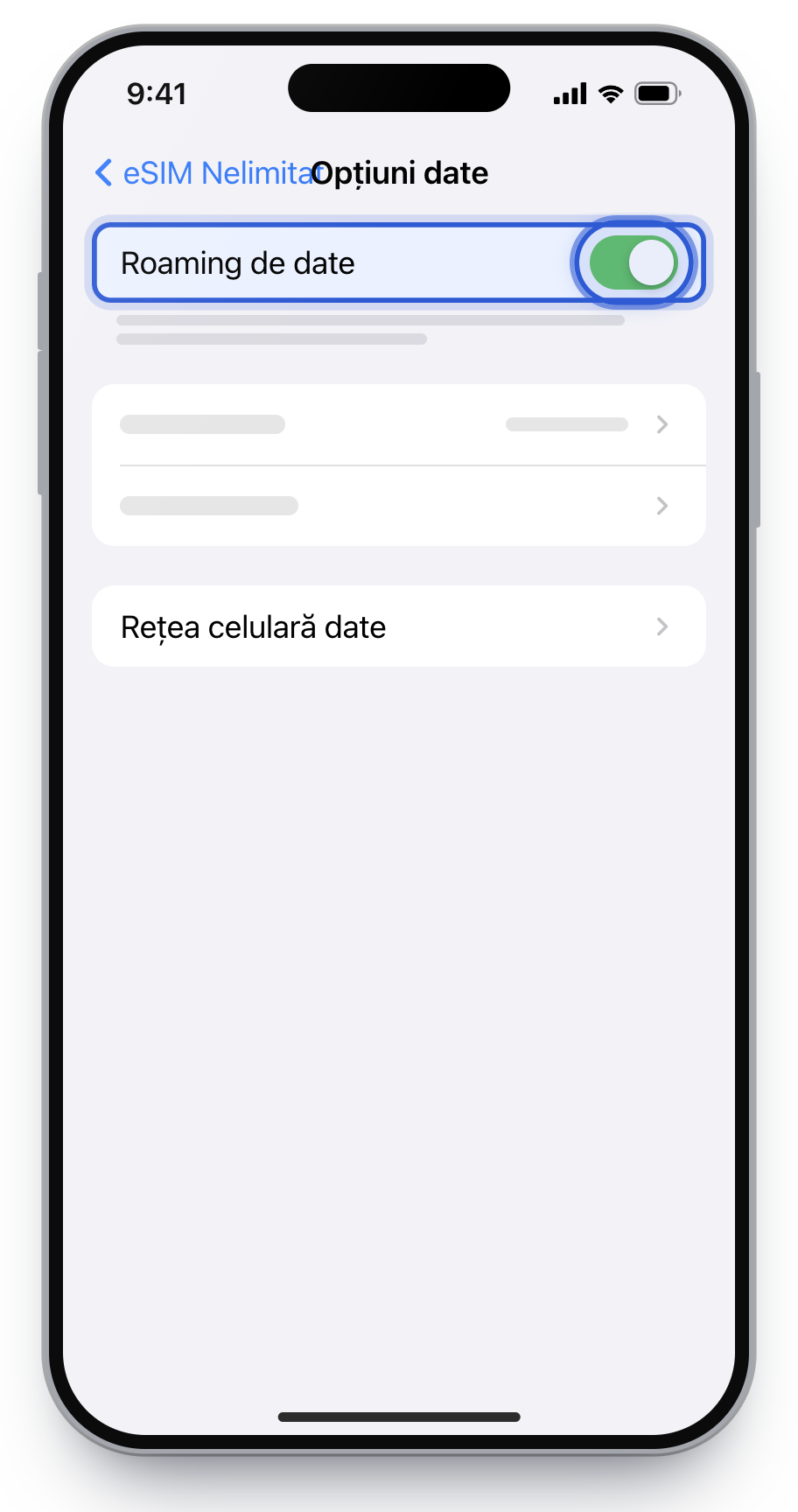
Turn on roaming only on the eSIM: eSIM Nelimitat → Cellular Data Options → Data Roaming. On your home line, leave roaming off.
On some iOS versions the menu is called Mobile Data Options.
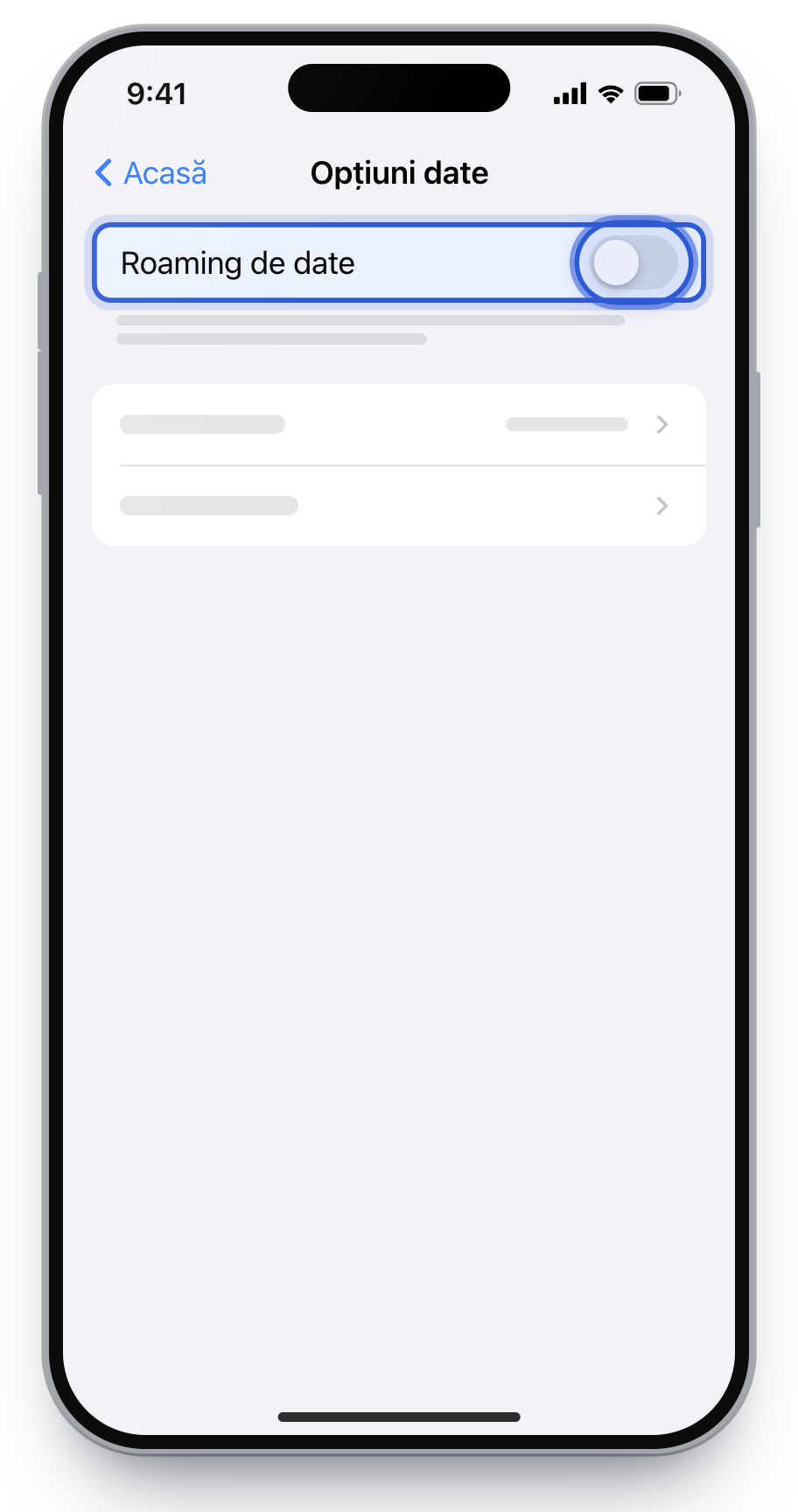
On for eSIM NelimitatOff on the home SIM
Turn on data roaming only on eSIM Nelimitat, not on your home SIM.
If you turn roaming on for your home SIM, your carrier can bill you for that traffic. Also leave automatic data switching off, so the phone does not use home-SIM data when the eSIM signal is weak.
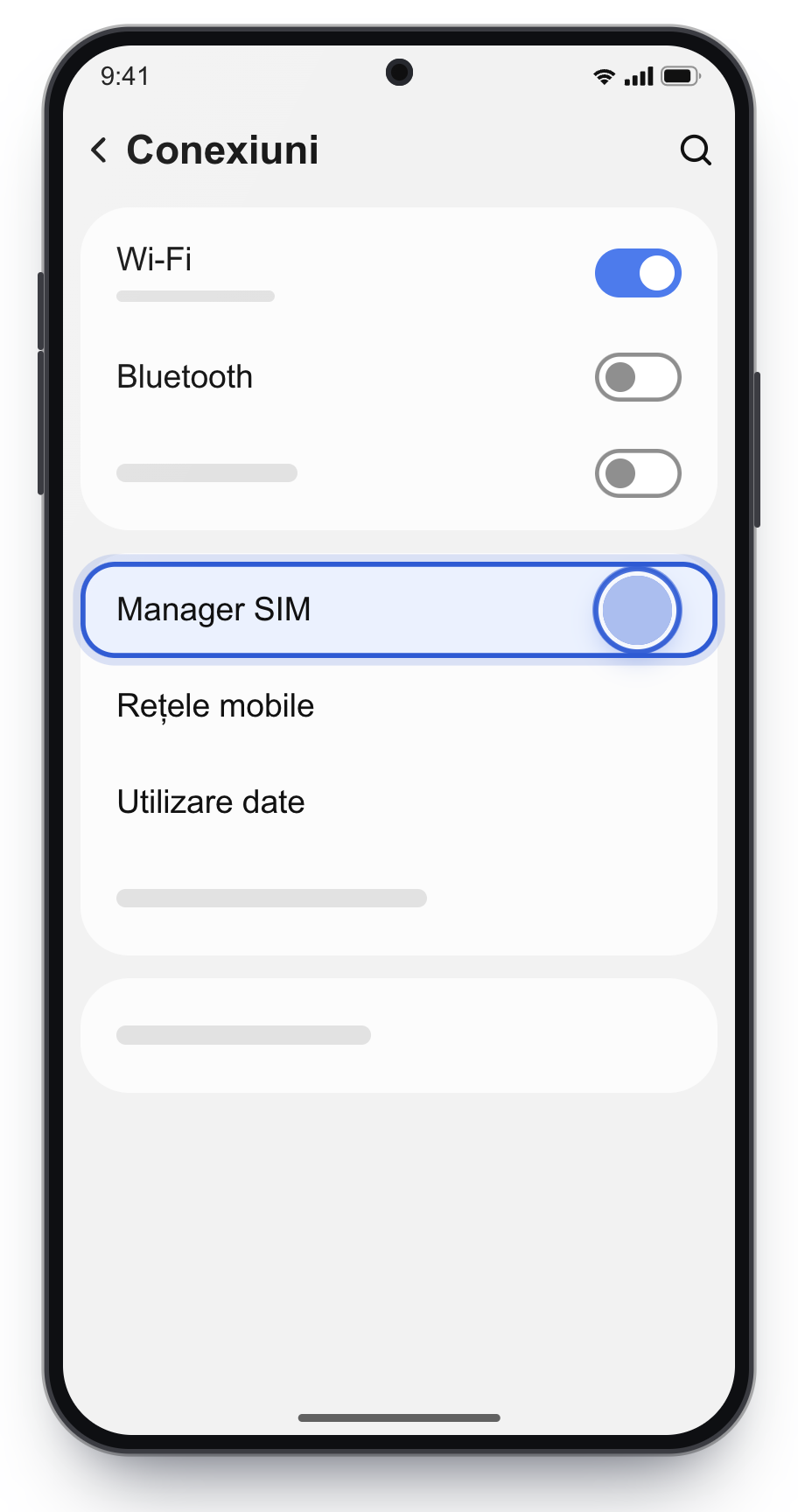
For Galaxy phones with One UI 6 or newer. On older versions the menu is called SIM card manager.
Install the eSIM
1
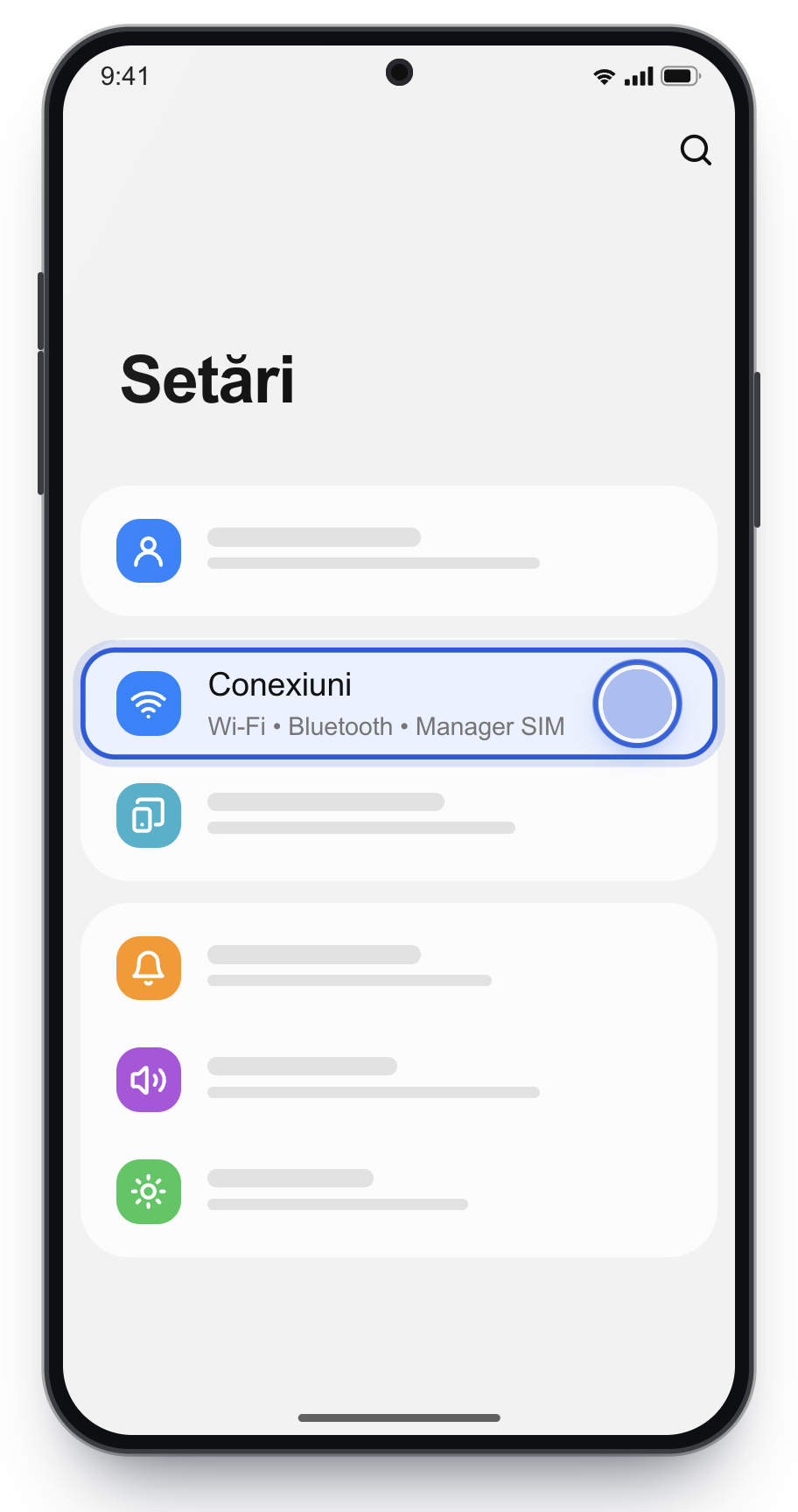
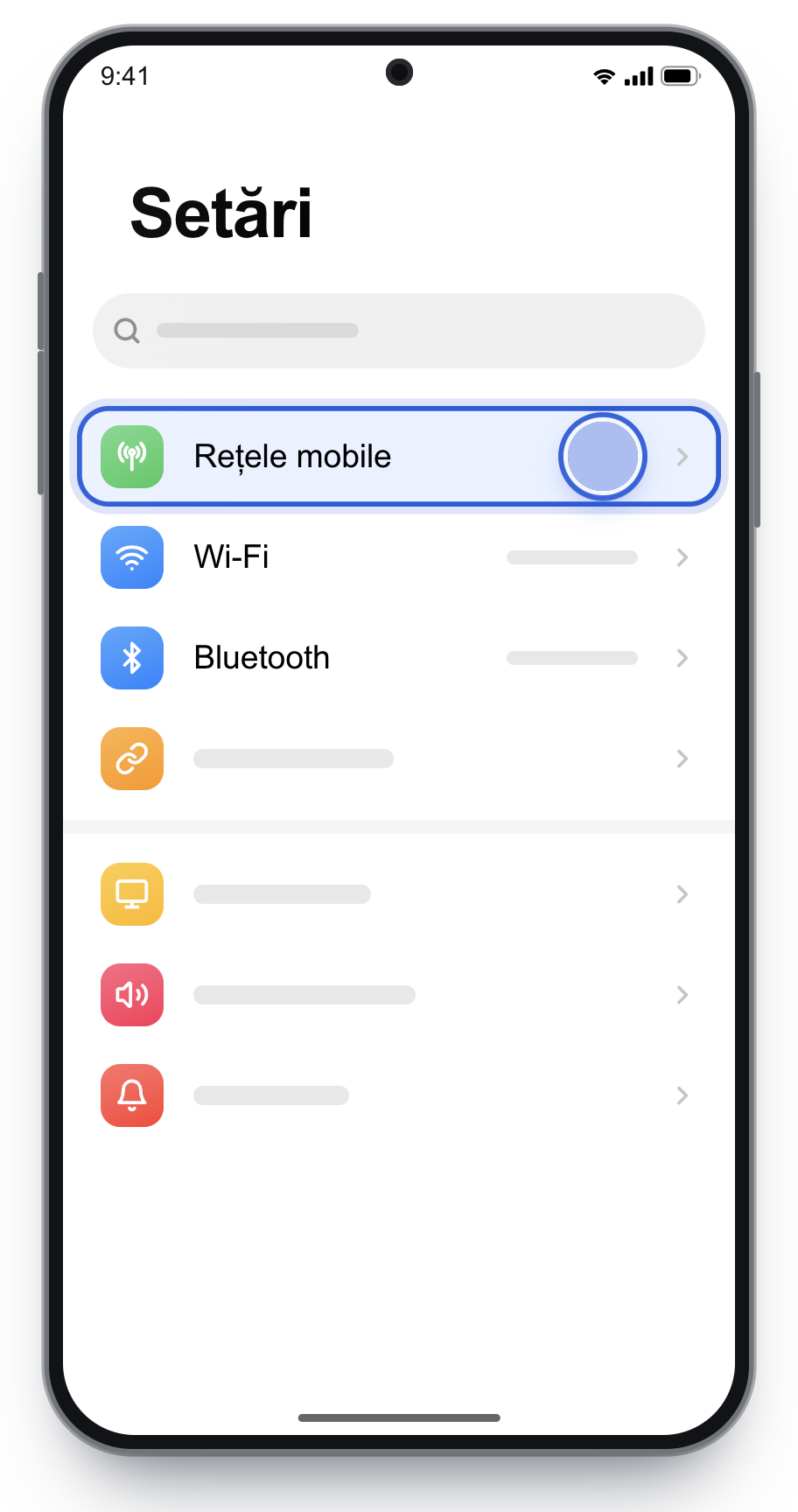
Open Settings and tap Connections.
2
Tap SIM manager.
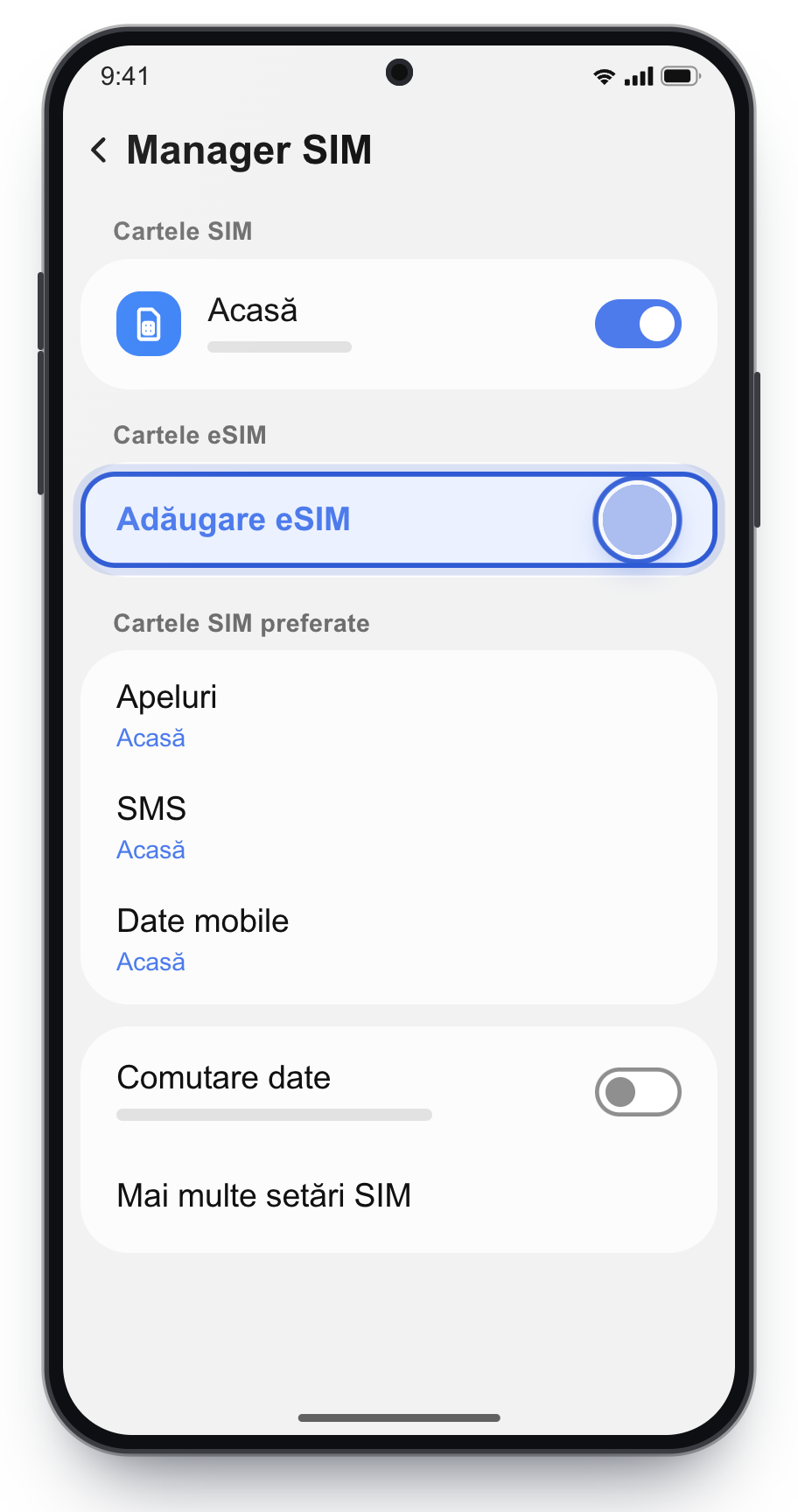
3
Under eSIMs, tap Add eSIM.
The phone may search for plans for a few seconds. Wait, then choose scanning.
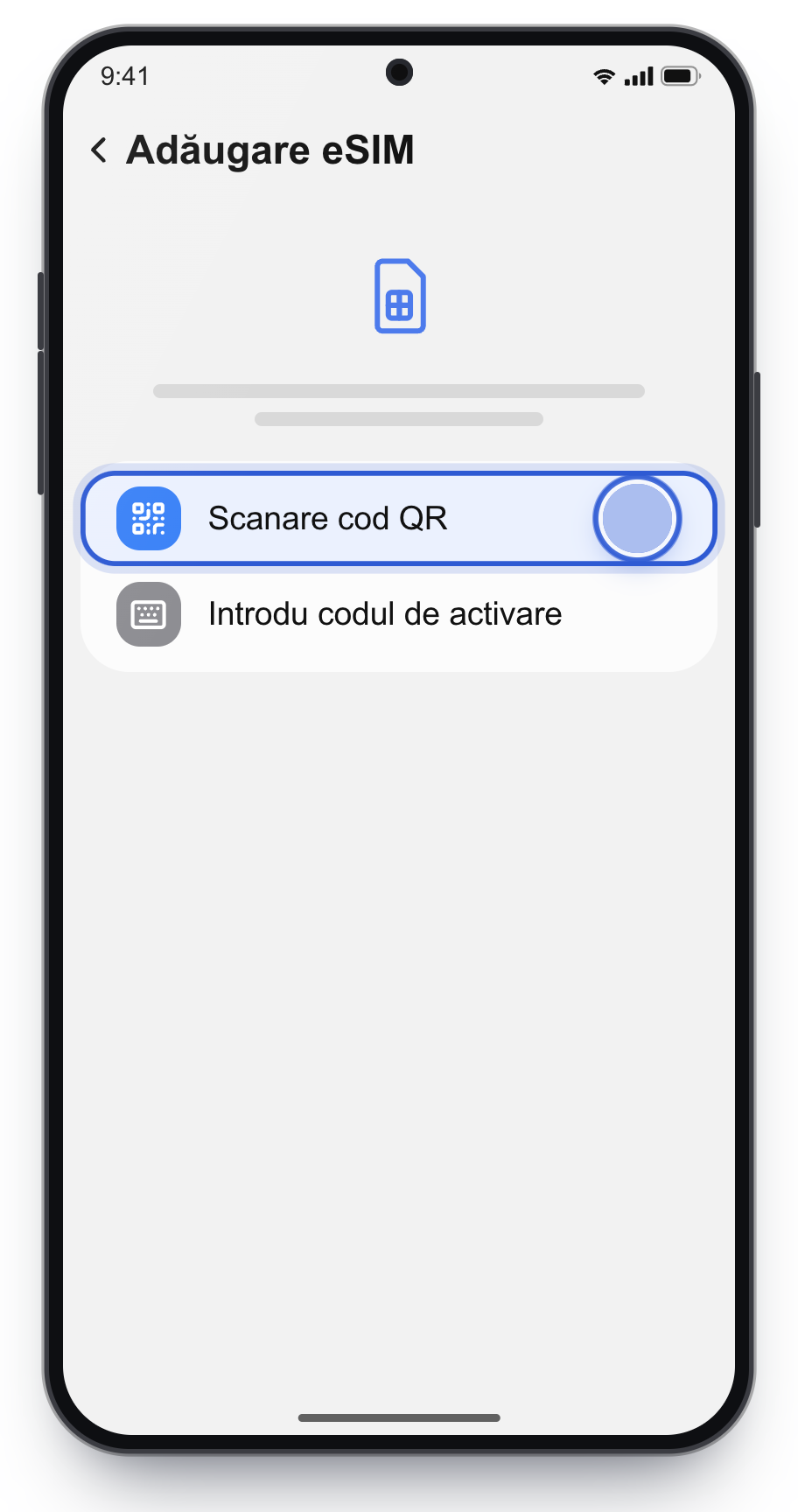
4
Tap Scan QR code.
Without a scan: Enter activation code.
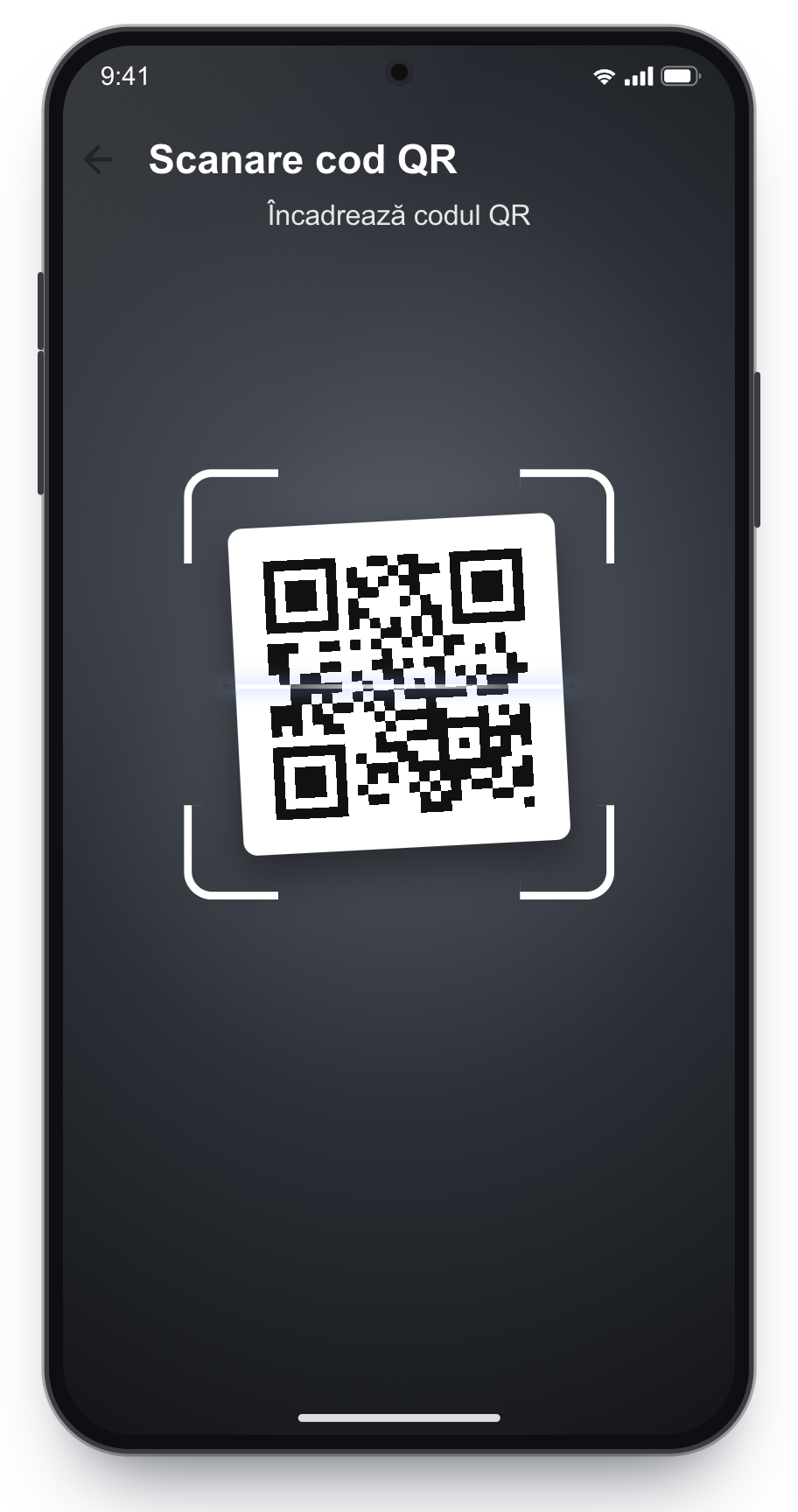
5
Scan the QR code from the email and confirm.
6
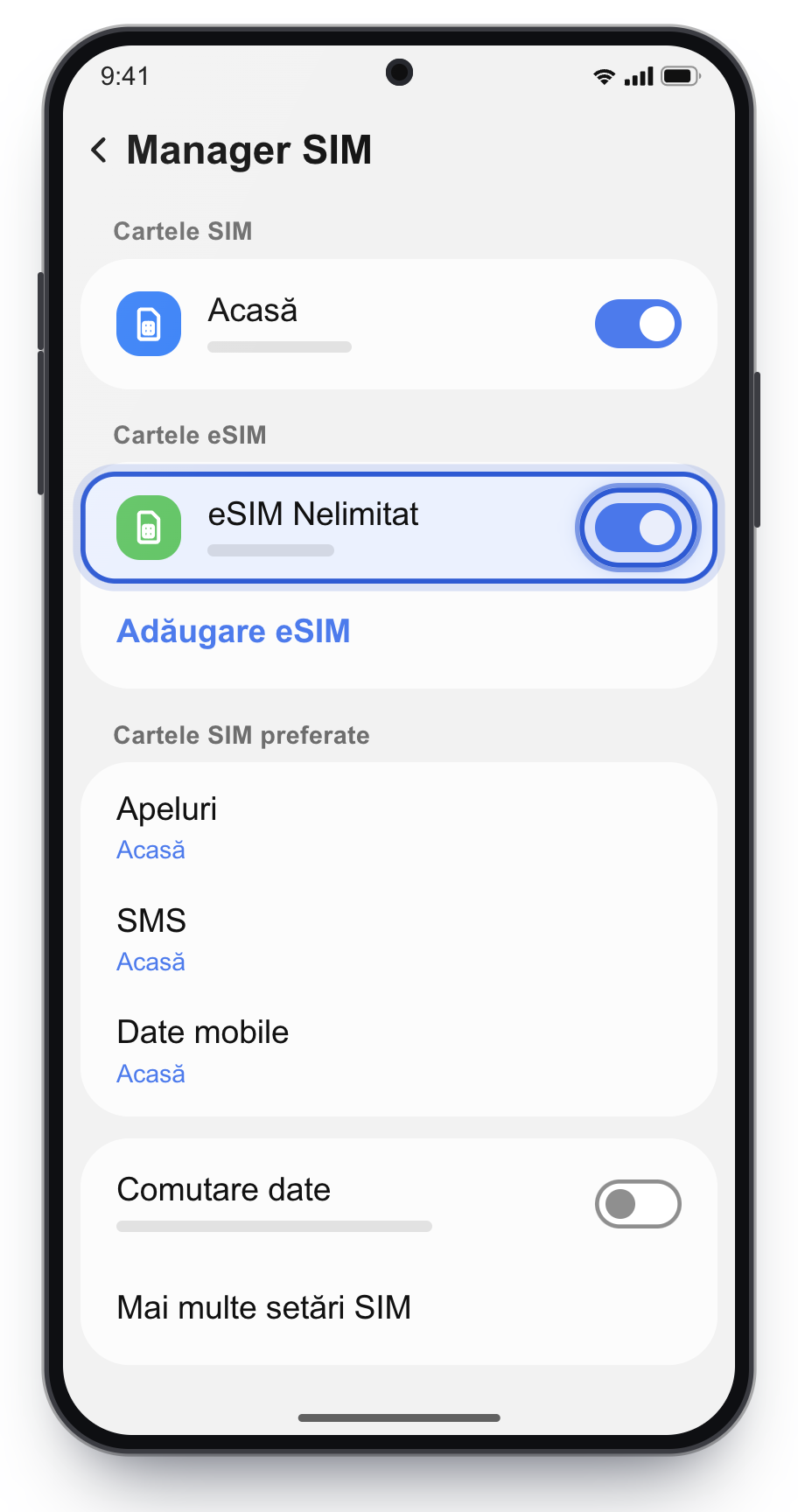
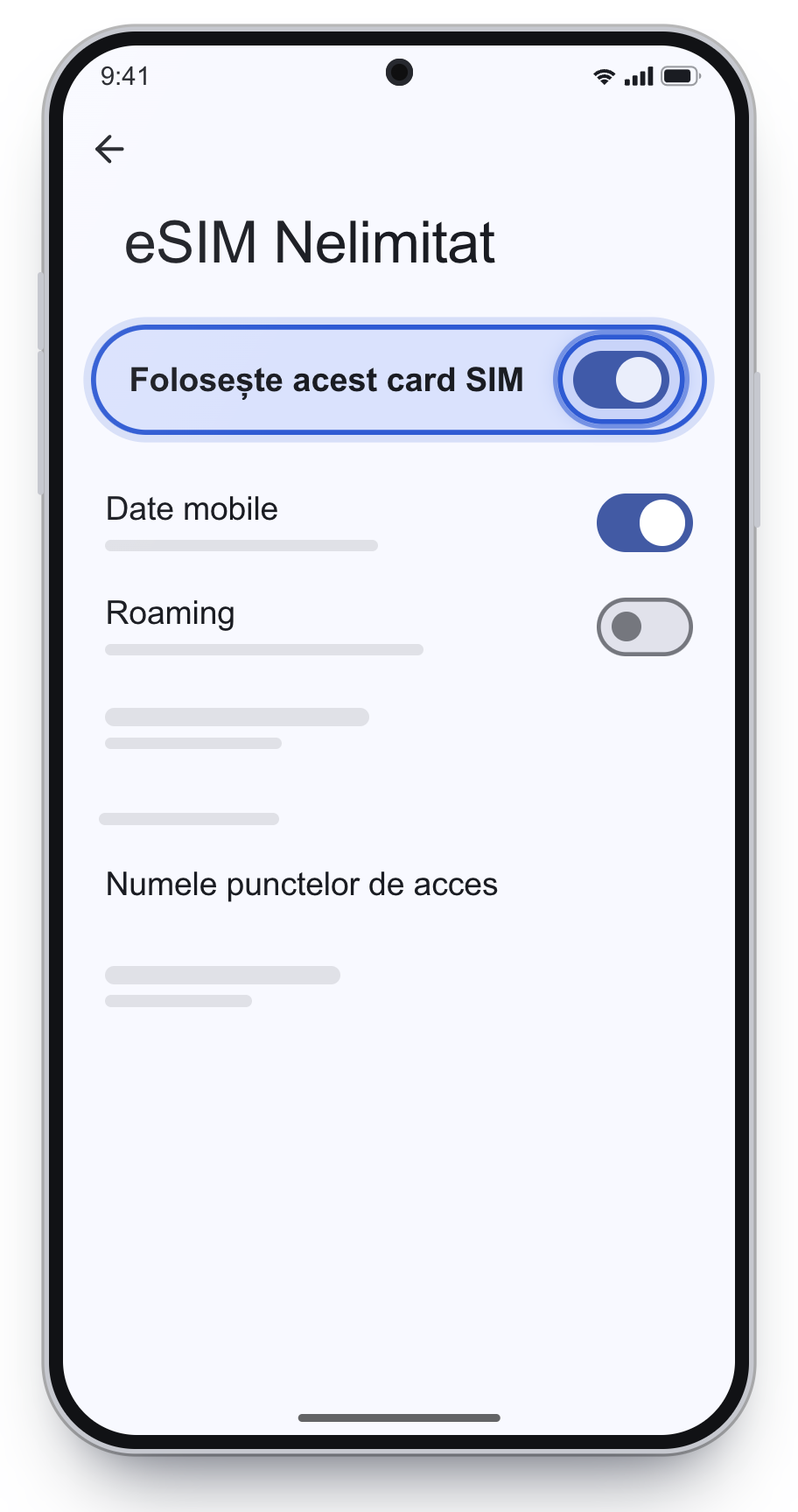
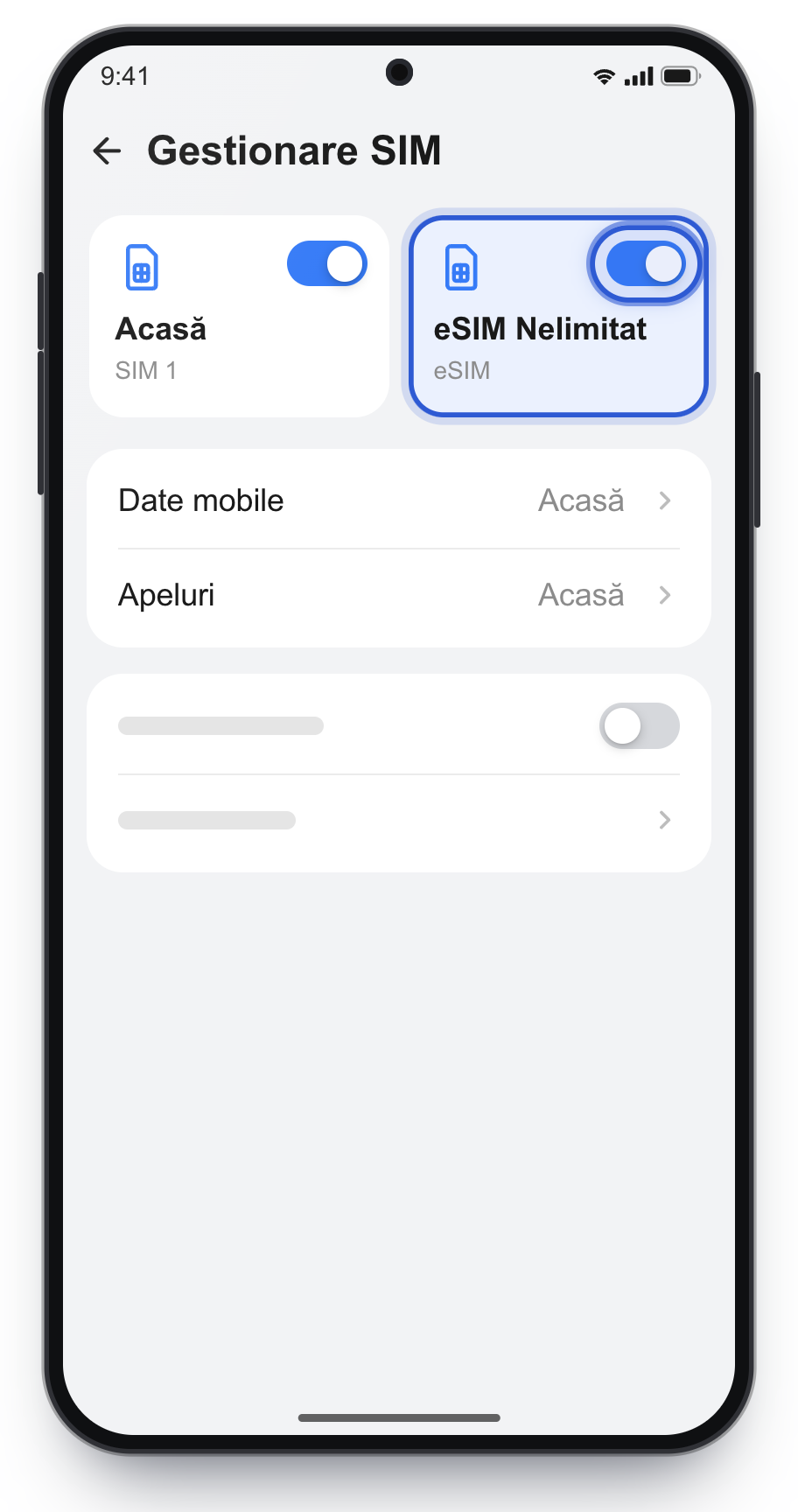
Check that eSIM Nelimitat is turned on.
The line appears under eSIMs. The switch on the right must be on.
No QR code: enter it manually
SM-DP+ Address and Activation Code, when the phone asks for two fields
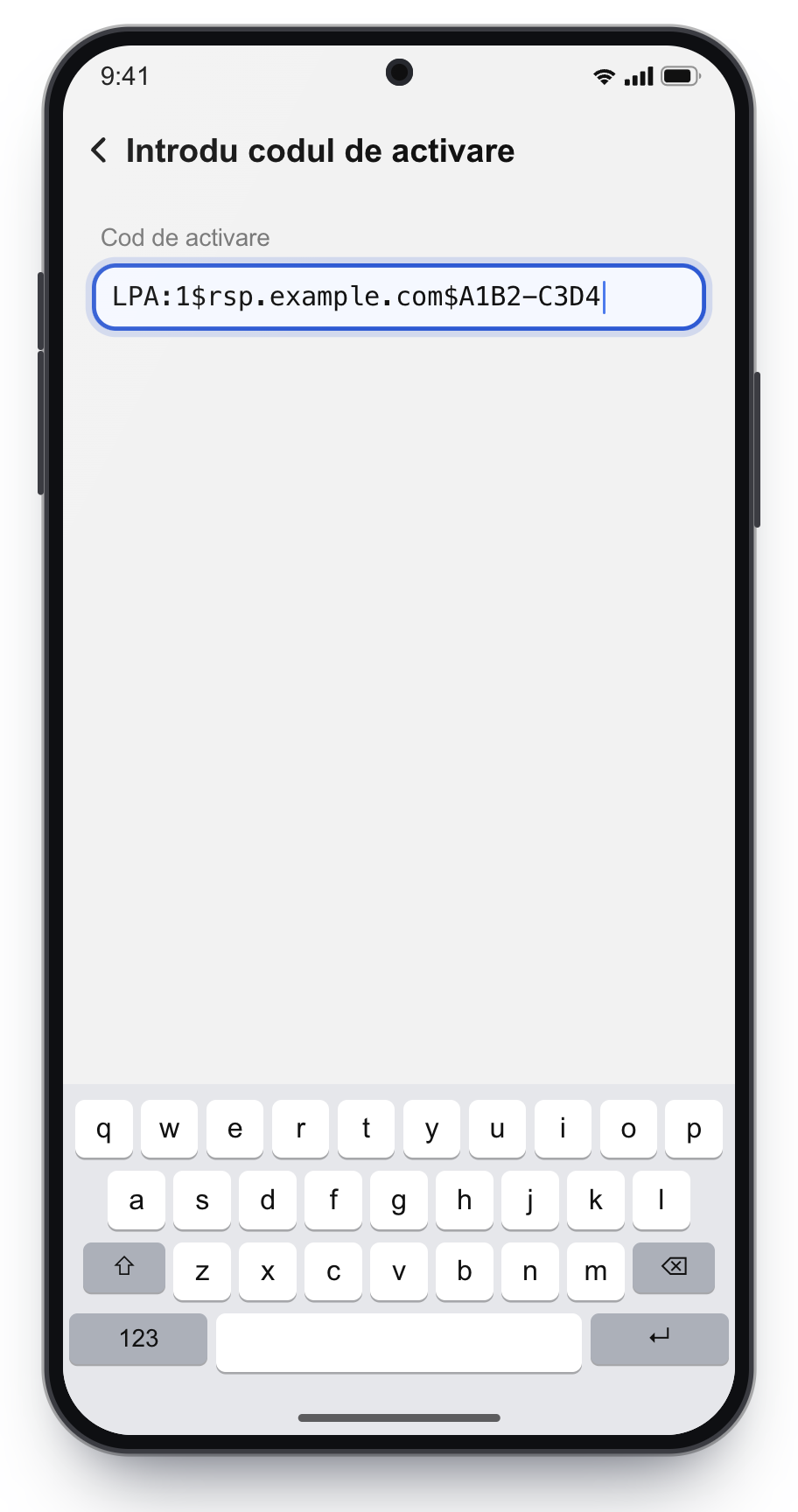
The LPA code, when the phone asks for one code. It starts with LPA:1$
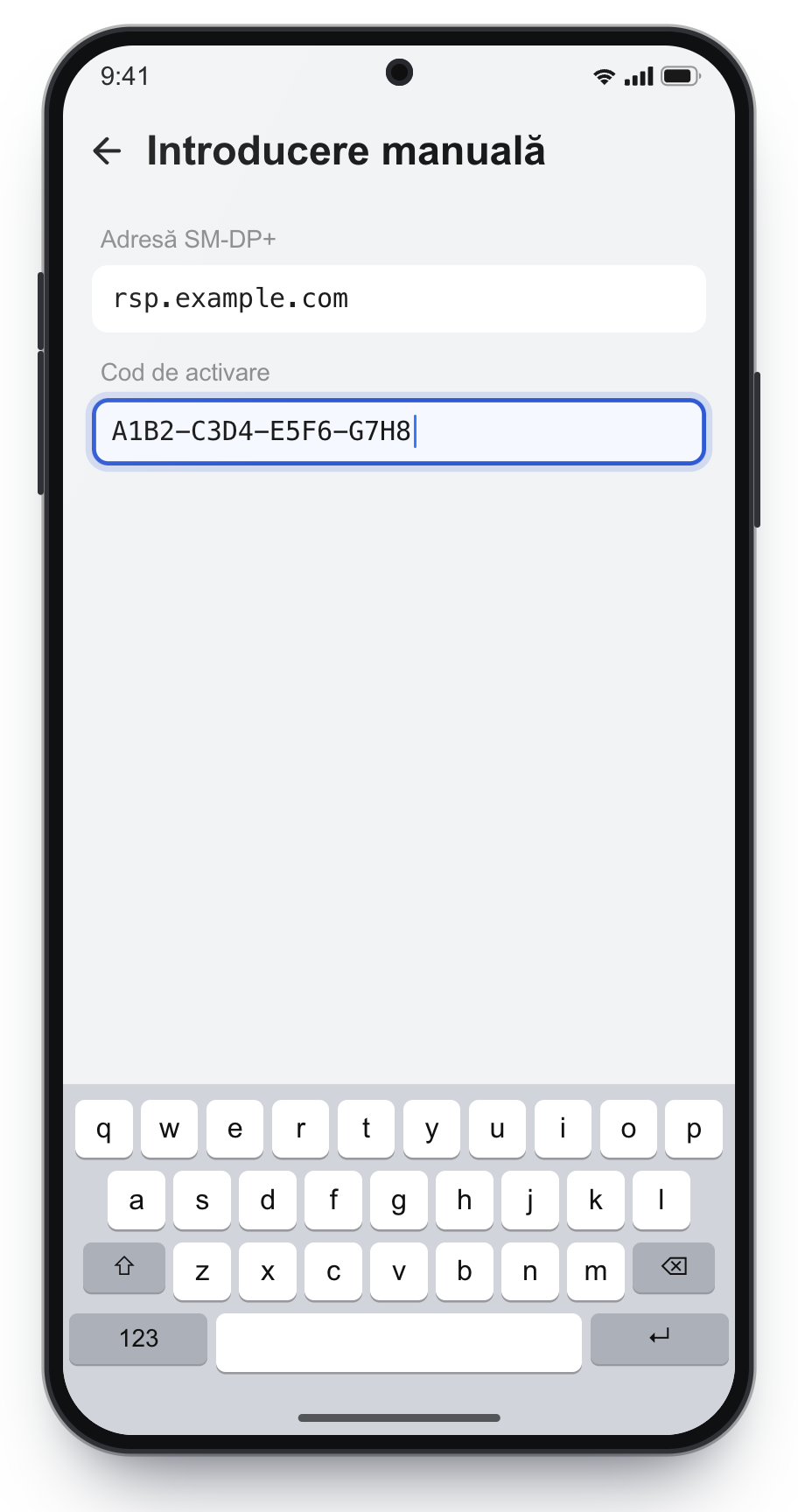
On step 4, tap Enter activation code.
Paste the codes from the email, exactly, with no spaces, then continue with activation.
Copy the codes exactly, with no spaces at the start or the end.
Turn it on: line, mobile data and roaming
After installation, the eSIM has to be on and selected for internet. Calls and SMS stay on your home SIM.
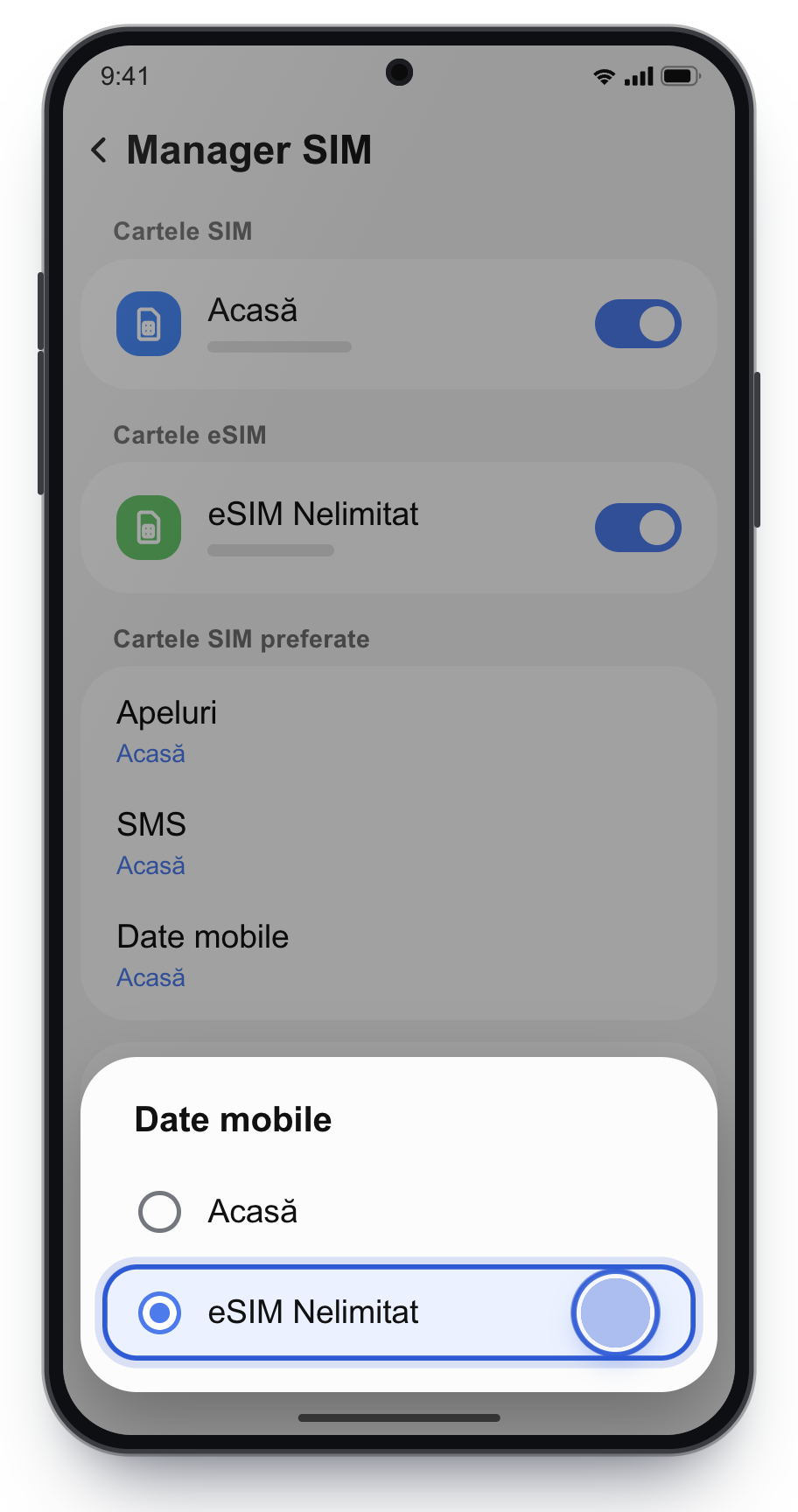
7
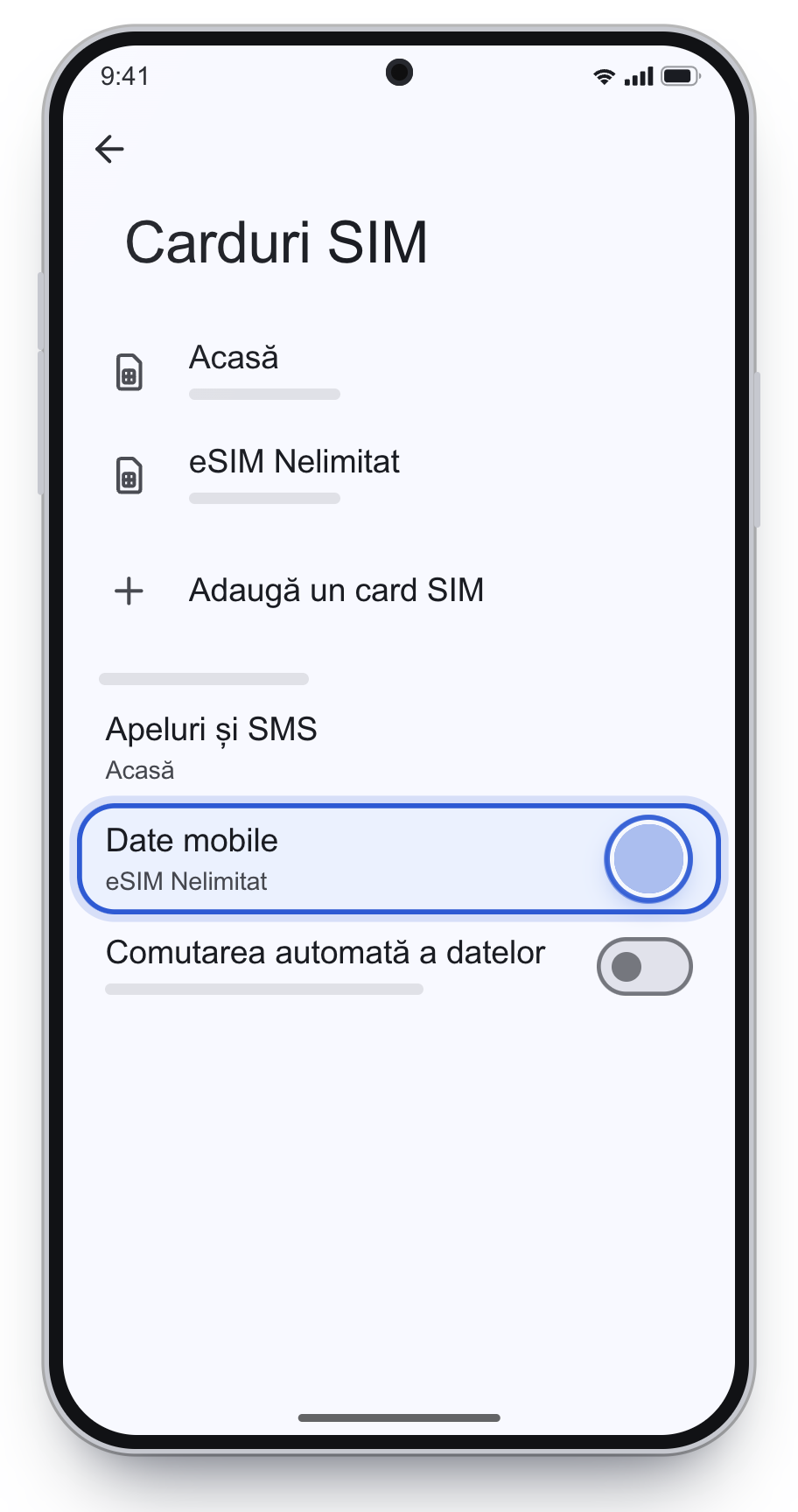
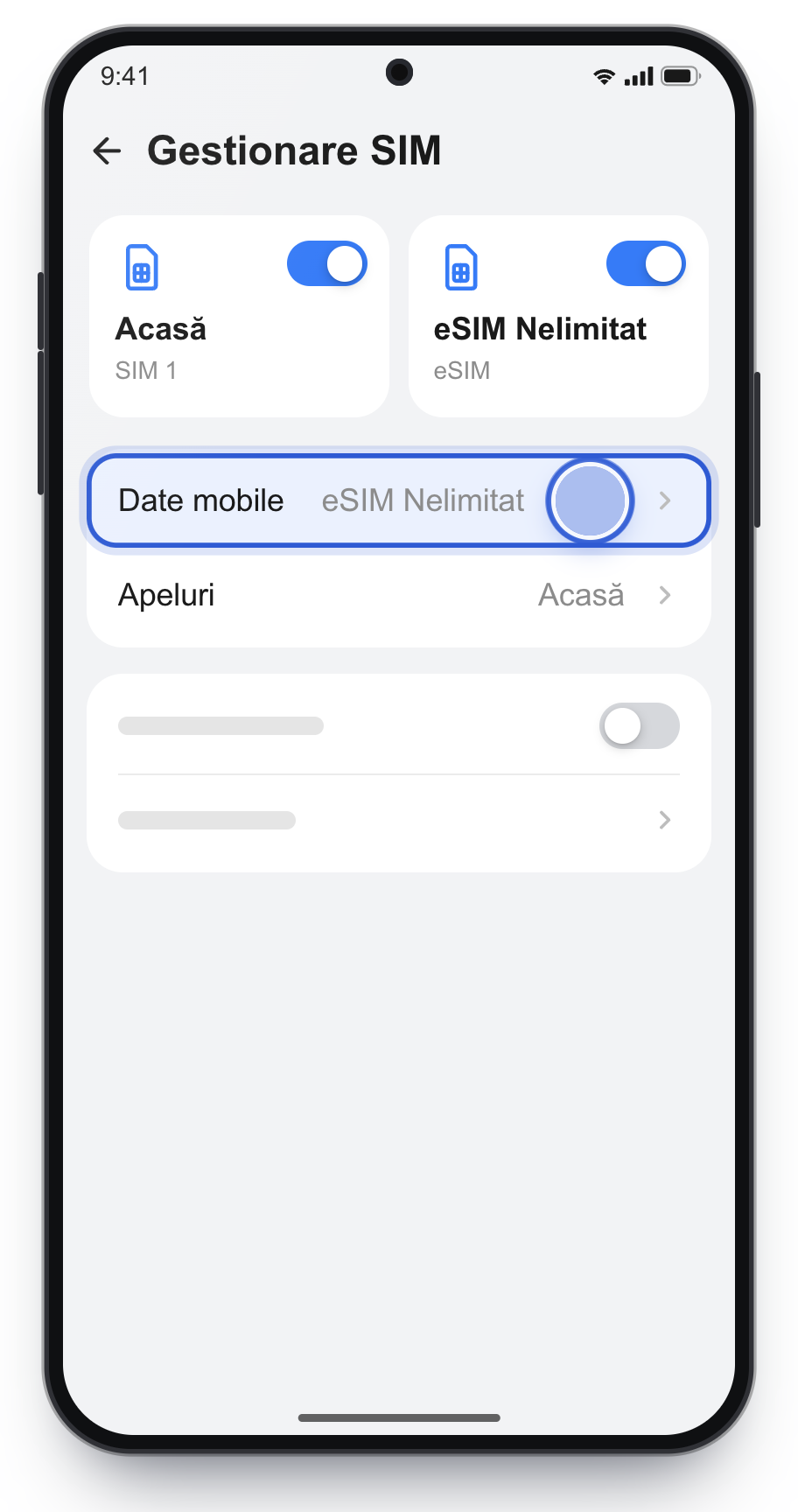
Choose eSIM Nelimitat for Mobile data. Calls and texts stay on your home SIM.
Leave Data switching off.
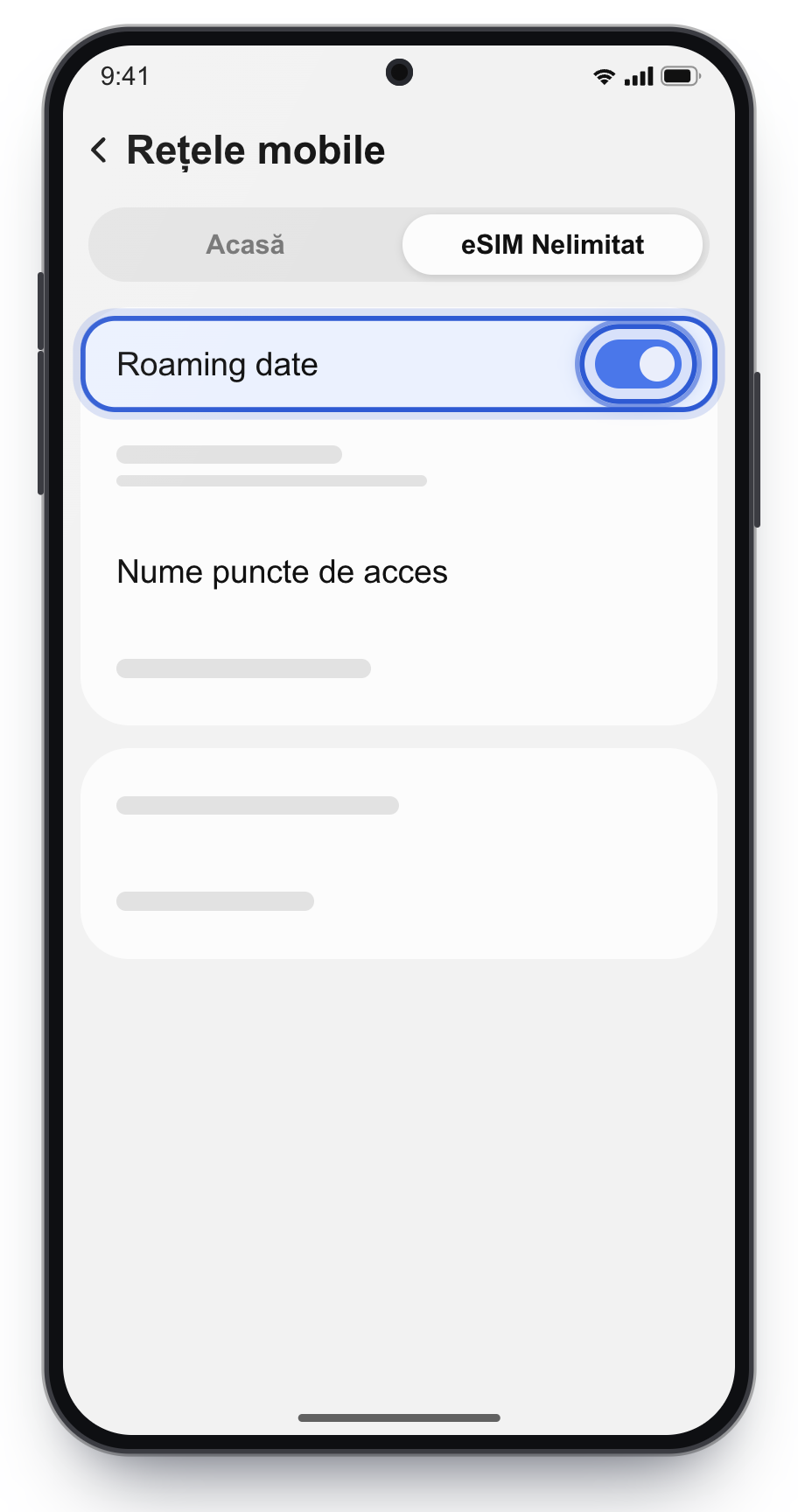
8
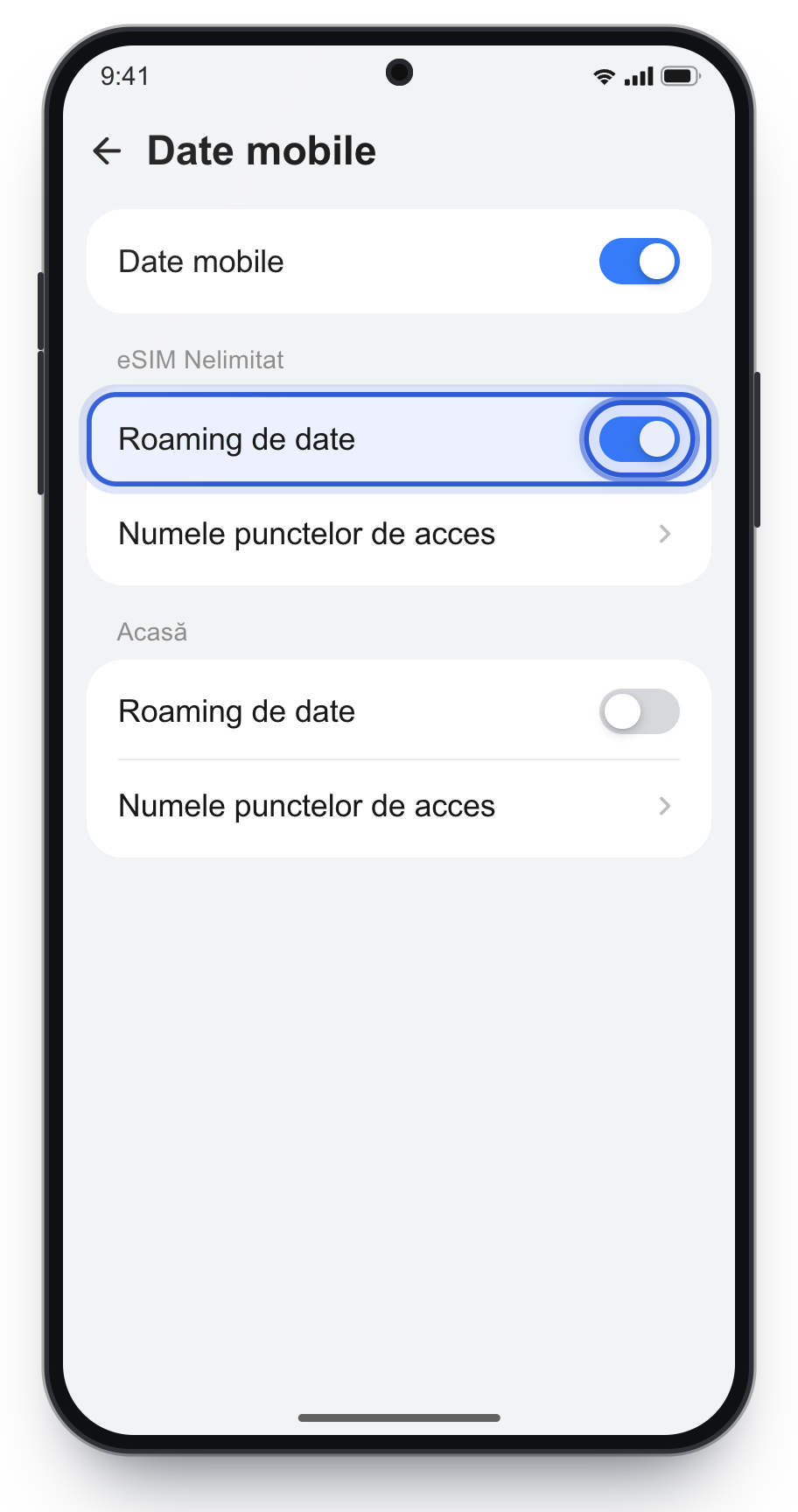
Turn on Data roaming only for eSIM Nelimitat.
Settings → Connections → Mobile networks → Data roaming. If the phone asks which SIM, choose eSIM Nelimitat first.
Turn on data roaming only on eSIM Nelimitat, not on your home SIM.
If you turn roaming on for your home SIM, your carrier can bill you for that traffic. Also leave automatic data switching off, so the phone does not use home-SIM data when the eSIM signal is weak.
Google Pixel
For Pixel phones with Android 15 or newer. Motorola and Nokia are similar.
Install the eSIM
1
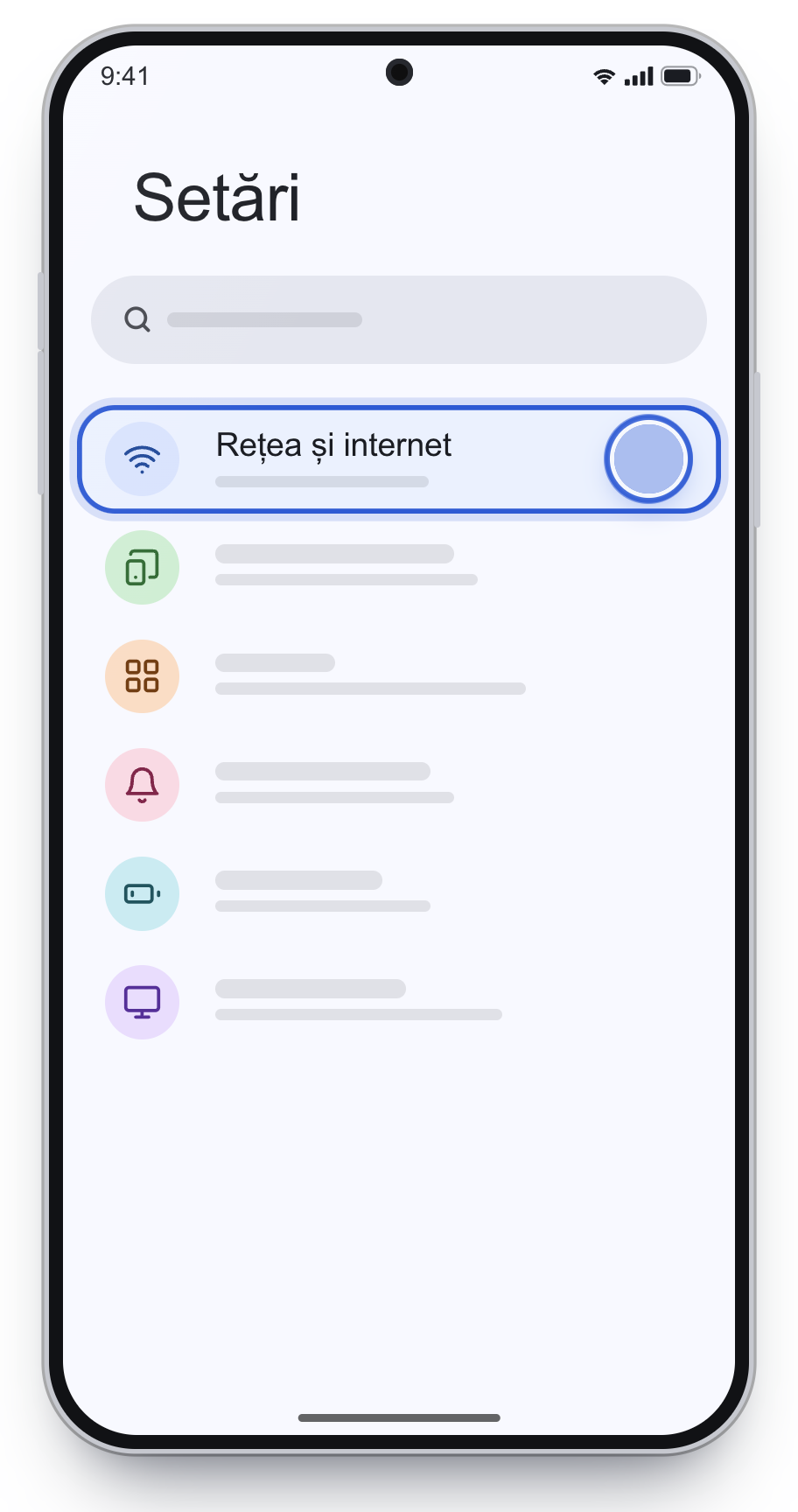
Open Settings and tap Network & internet.
2
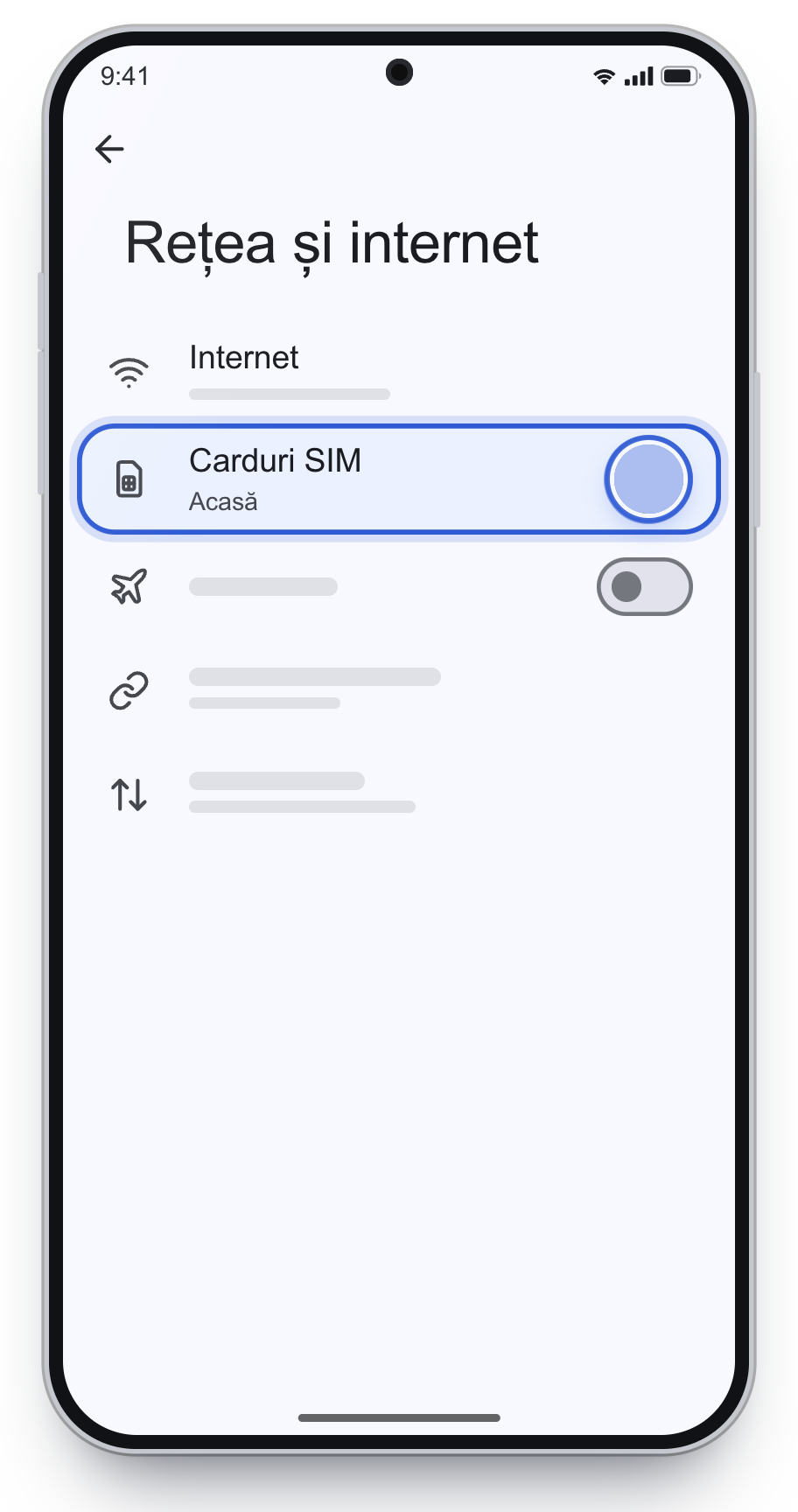
Tap SIMs.
3
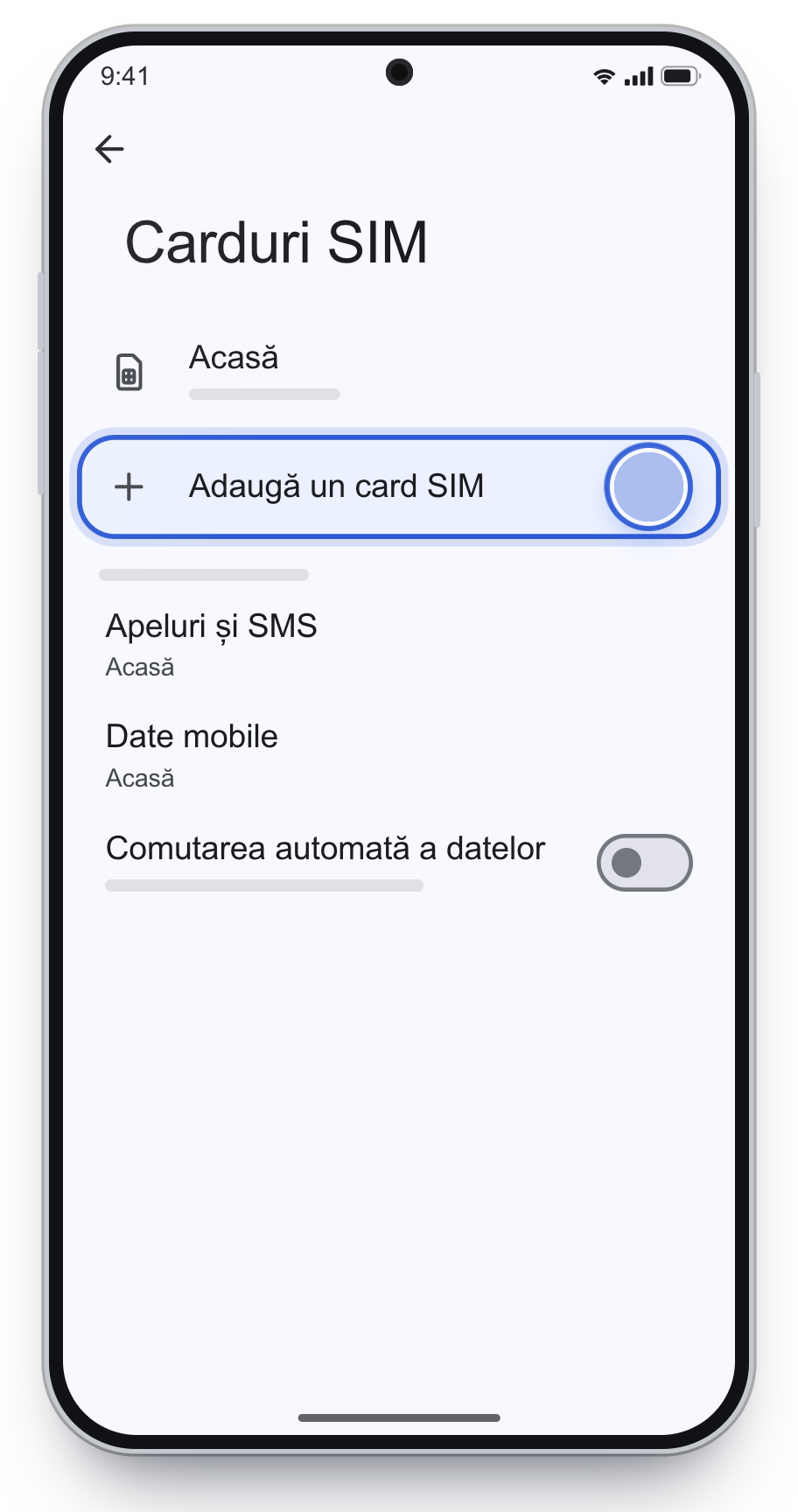
Tap Add SIM.
4
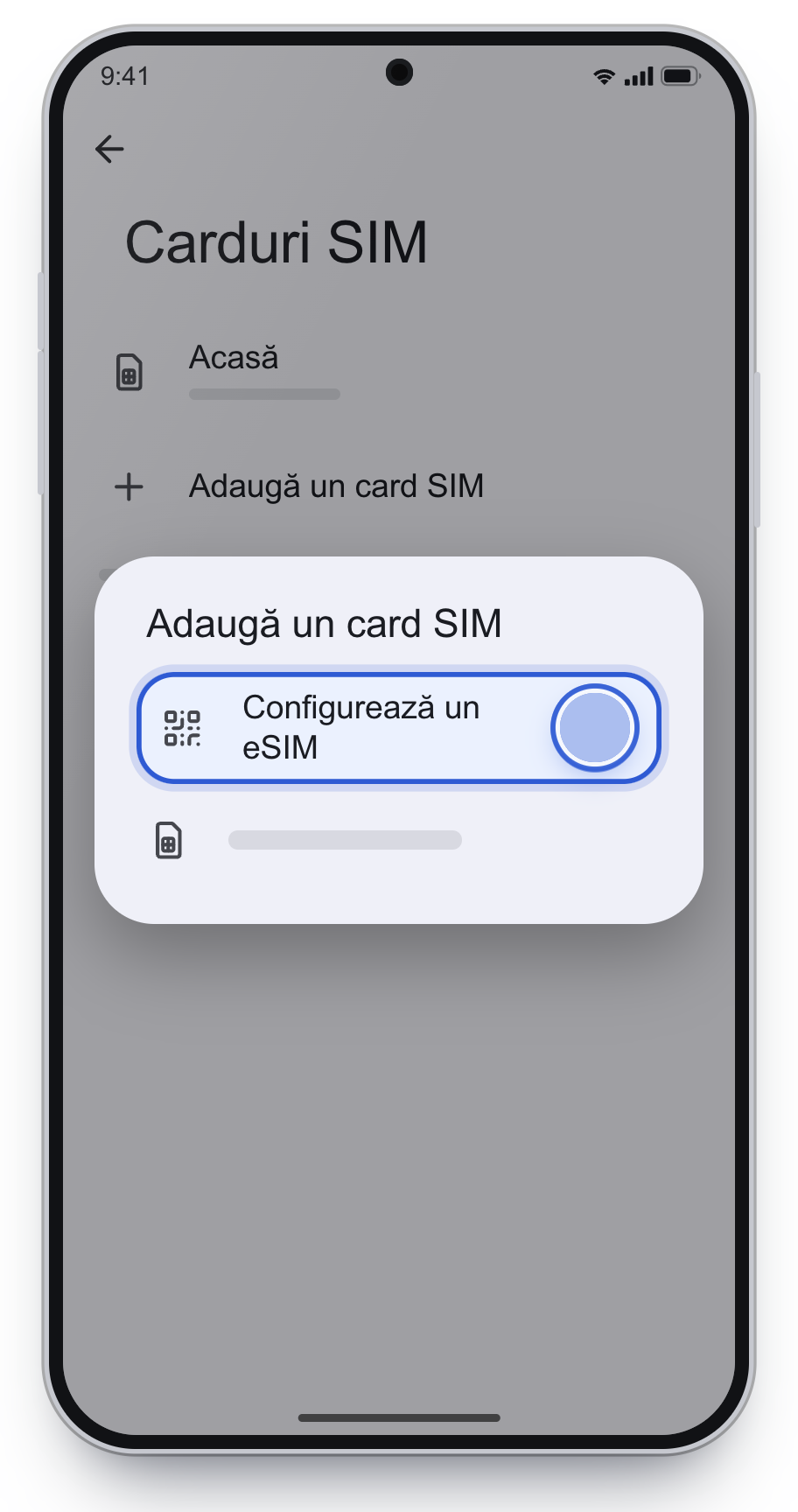
Choose Set up an eSIM.
During first phone setup: Download an eSIM, then Set up.
5
Scan the QR code from the email and confirm until you see Done.
No QR code: enter it manually
SM-DP+ Address and Activation Code, when the phone asks for two fields
The LPA code, when the phone asks for one code. It starts with LPA:1$
On the camera screen, look for manual code entry.
Paste the codes from the email, exactly, with no spaces, then continue with activation.
Copy the codes exactly, with no spaces at the start or the end.
Turn it on: line, mobile data and roaming
After installation, the eSIM has to be on and selected for internet. Calls and SMS stay on your home SIM.
6
Open eSIM Nelimitat and turn on Use SIM.
7
Set mobile data to eSIM Nelimitat. Calls stay on your home SIM.
Leave Automatic data switching off.
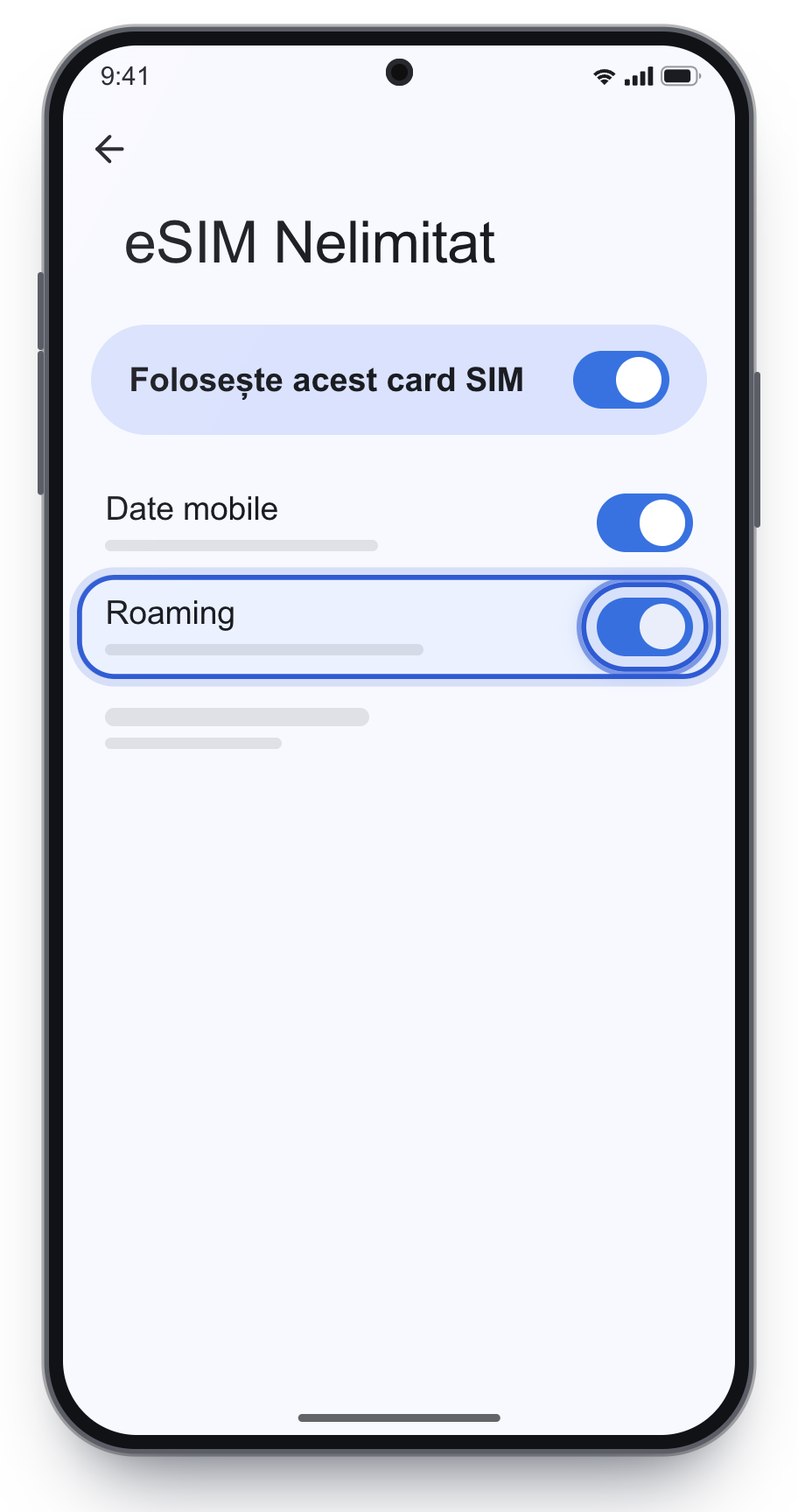
8
Turn on Roaming on the eSIM Nelimitat page, not on your home SIM.
Turn on data roaming only on eSIM Nelimitat, not on your home SIM.
If you turn roaming on for your home SIM, your carrier can bill you for that traffic. Also leave automatic data switching off, so the phone does not use home-SIM data when the eSIM signal is weak.
Huawei
For Huawei phones with EMUI 12–14 or HarmonyOS. Only some models have an eSIM.
Install the eSIM
1
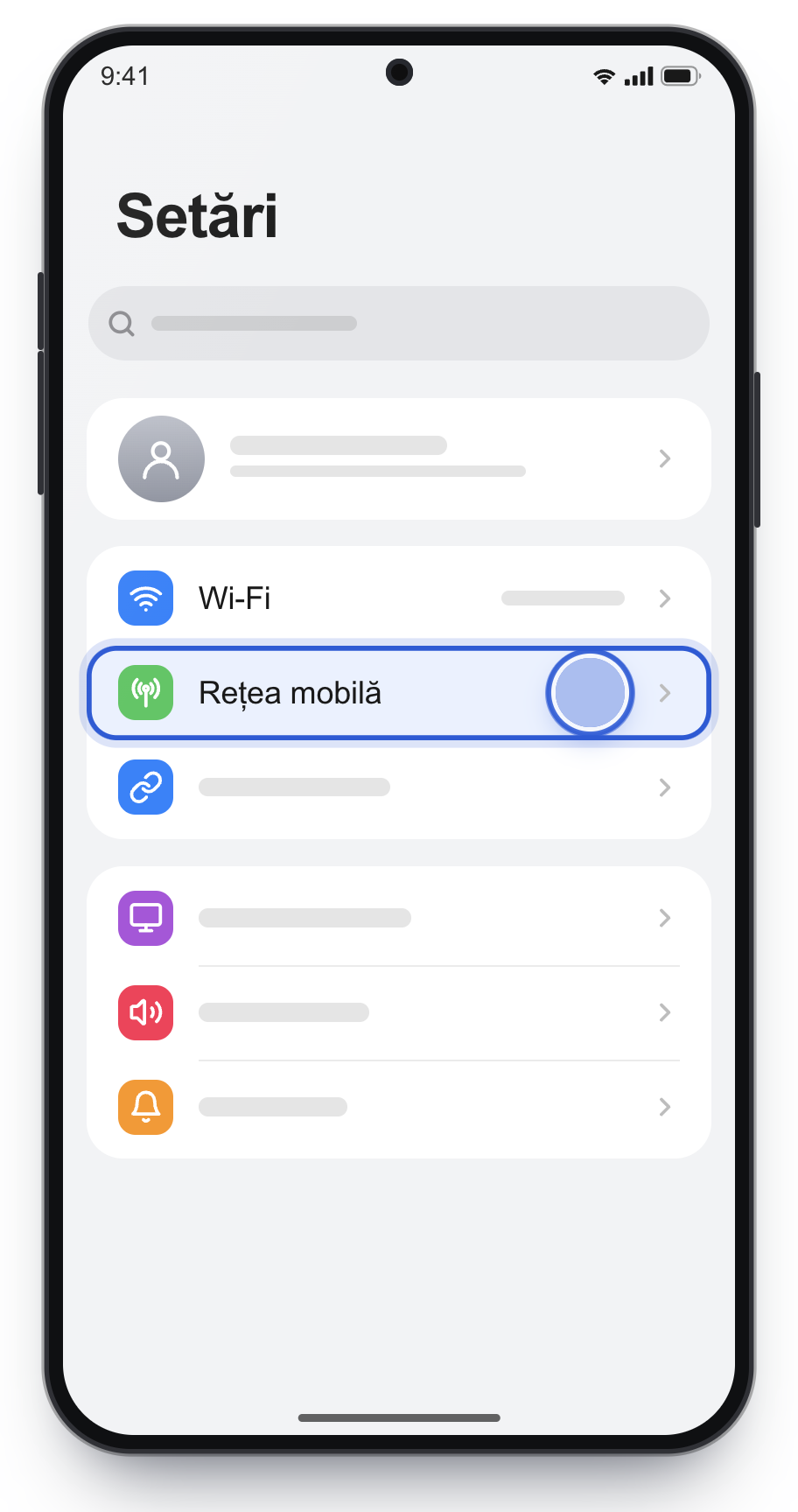
Open Settings and tap Mobile network.
2
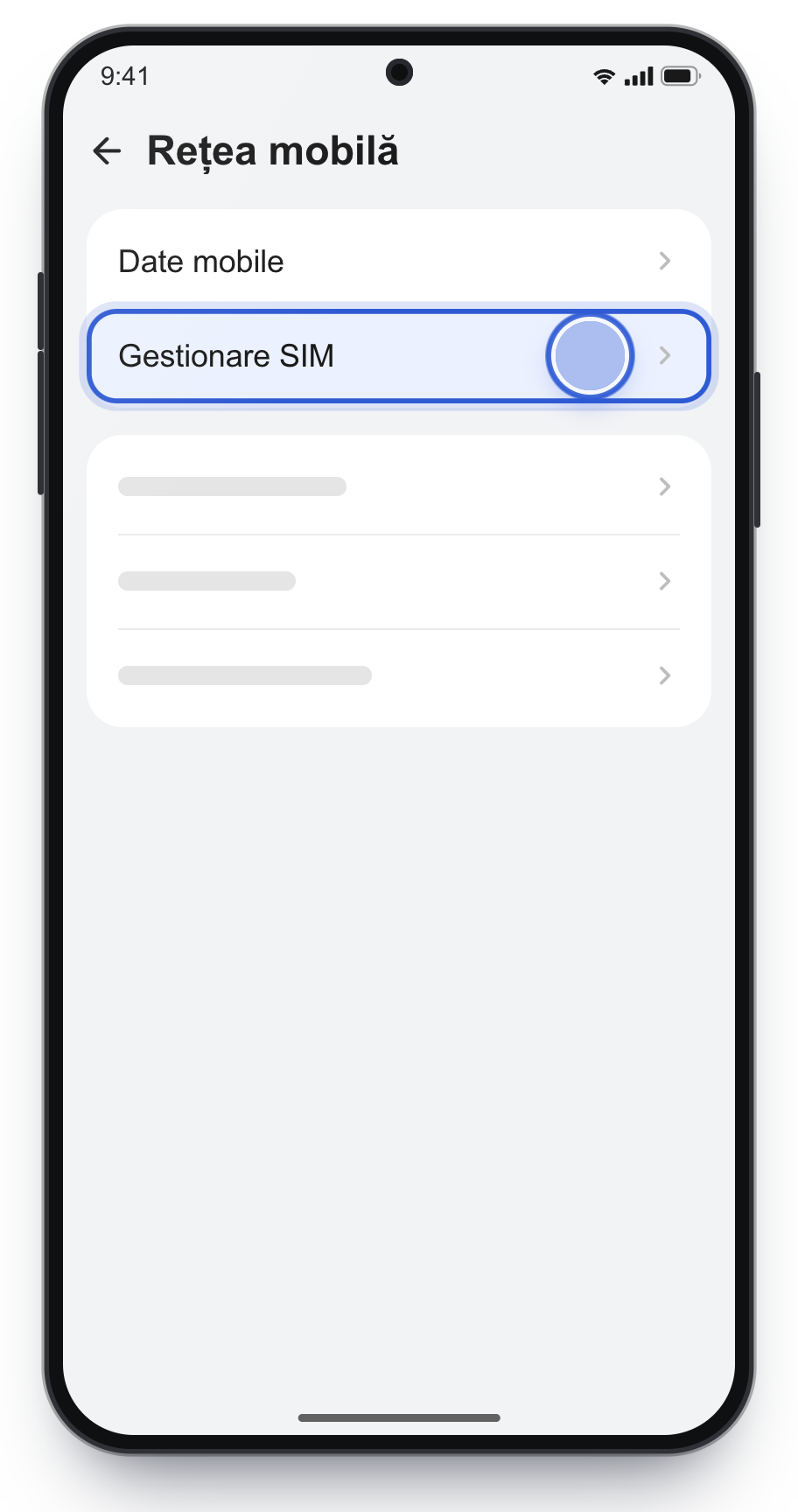
Tap SIM management.
3
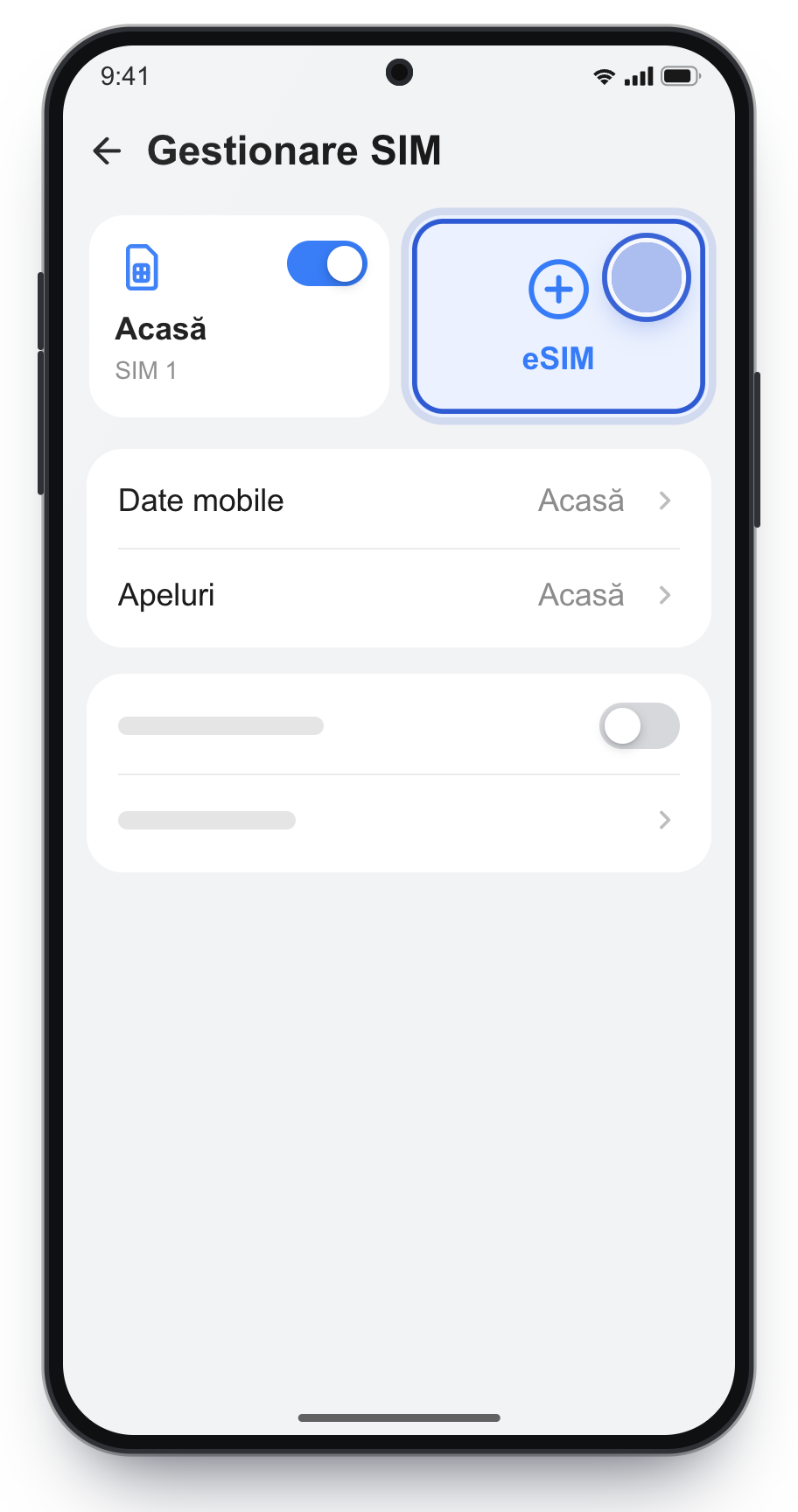
Tap + next to eSIM to add the line.
The exact label differs by model.
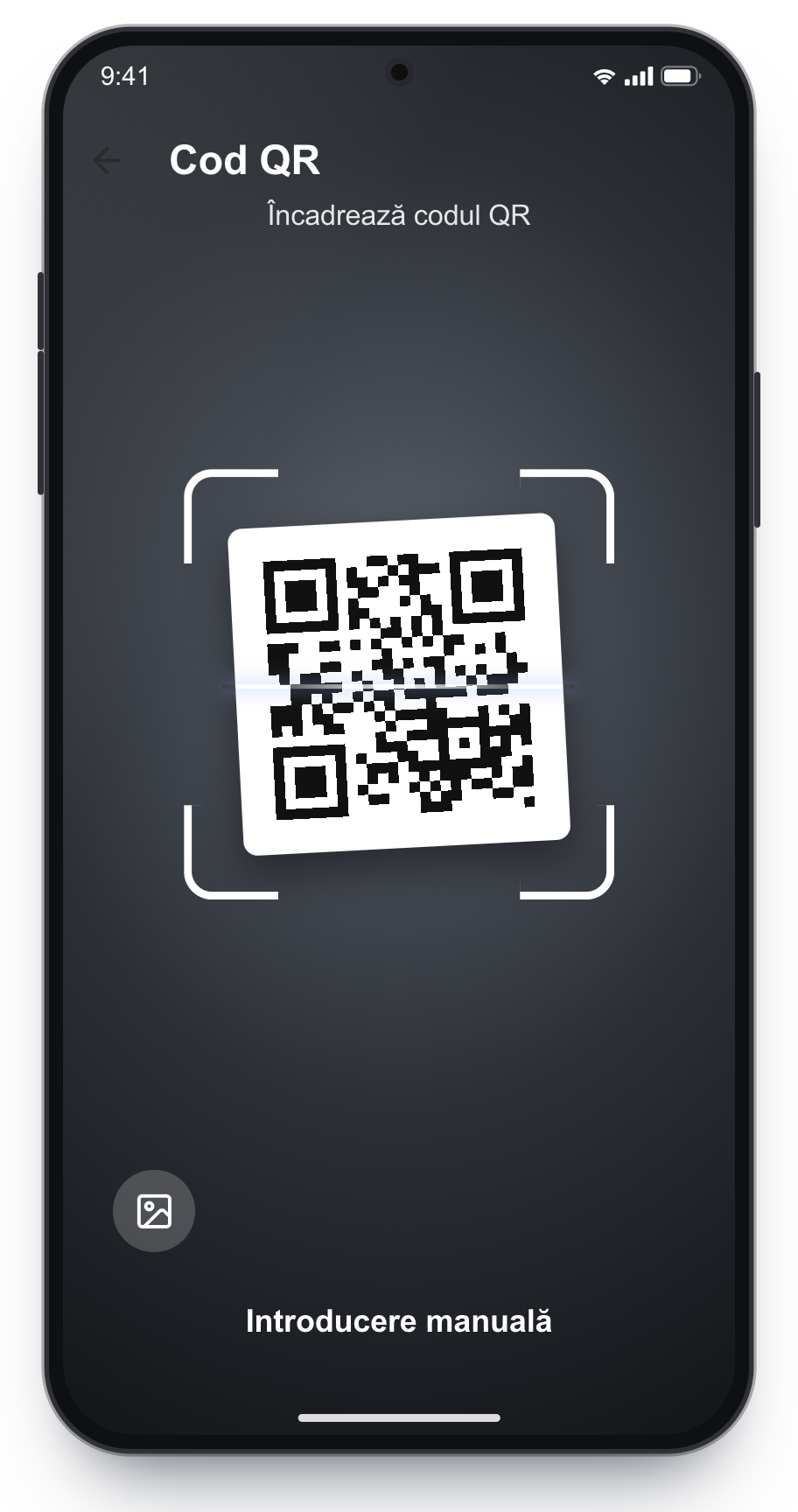
4
Scan the QR code from the email.
The code is saved as a picture? You can pick it from the gallery, from the corner of the screen.
5
Confirm, then check that eSIM Nelimitat is turned on.
No QR code: enter it manually
SM-DP+ Address and Activation Code, when the phone asks for two fields
The LPA code, when the phone asks for one code. It starts with LPA:1$
On the scan screen, choose manual entry.
Paste the codes from the email, exactly, with no spaces, then continue with activation.
Copy the codes exactly, with no spaces at the start or the end.
Turn it on: line, mobile data and roaming
After installation, the eSIM has to be on and selected for internet. Calls and SMS stay on your home SIM.
6
Choose eSIM Nelimitat for Mobile data. Calls stay on your home SIM.
7
Turn on Data roaming only for eSIM Nelimitat.
Settings → Mobile network → Mobile data → Data roaming. Leave it off on your home SIM.
Turn on data roaming only on eSIM Nelimitat, not on your home SIM.
If you turn roaming on for your home SIM, your carrier can bill you for that traffic. Also leave automatic data switching off, so the phone does not use home-SIM data when the eSIM signal is weak.
Xiaomi / Redmi
For HyperOS 2 or newer. On MIUI the section may be called SIM cards & mobile networks.
Install the eSIM
1
Open Settings and tap Mobile networks.
2
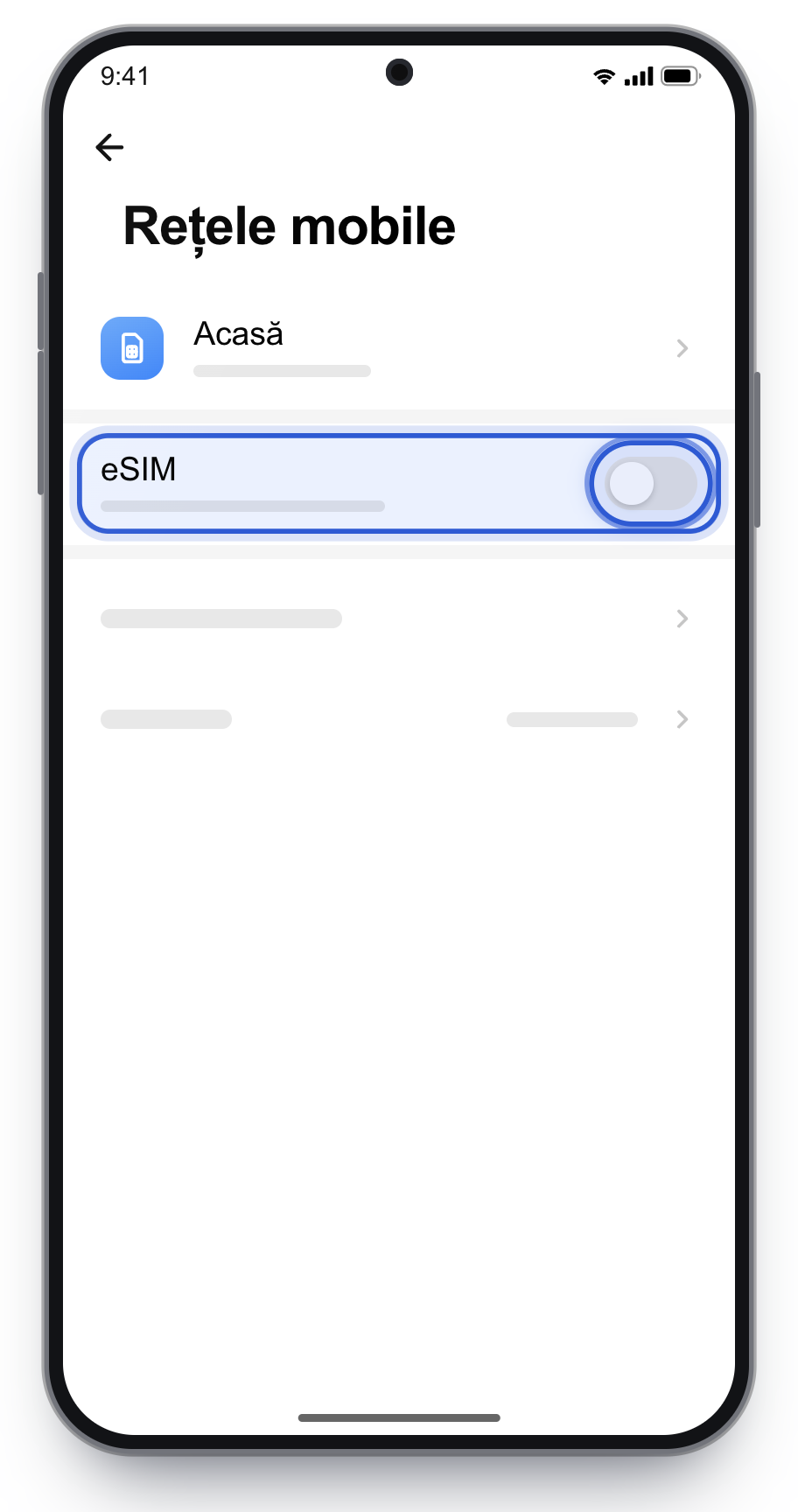
Turn on the eSIM switch and confirm.
3
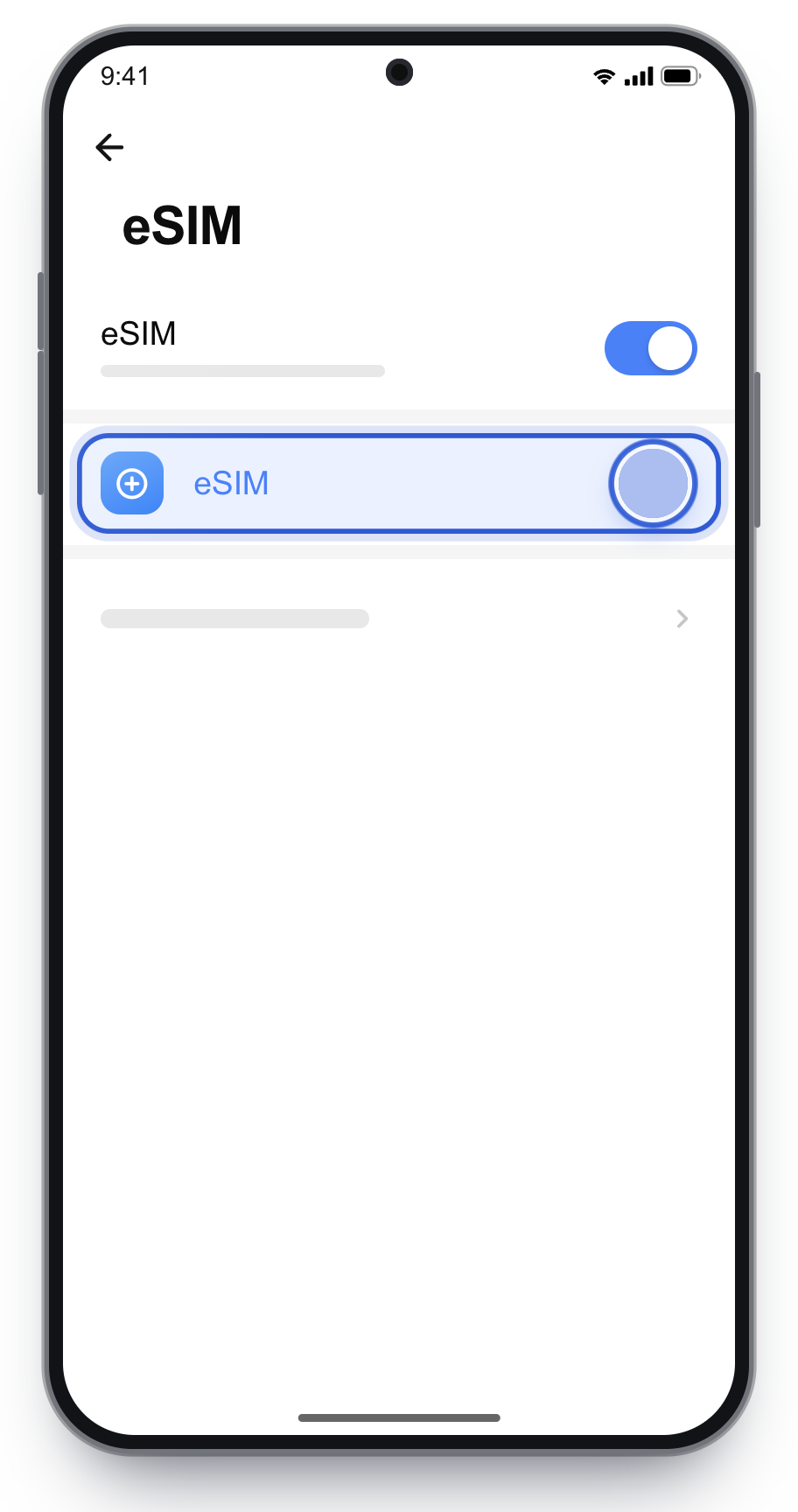
Tap + to add an eSIM.
4
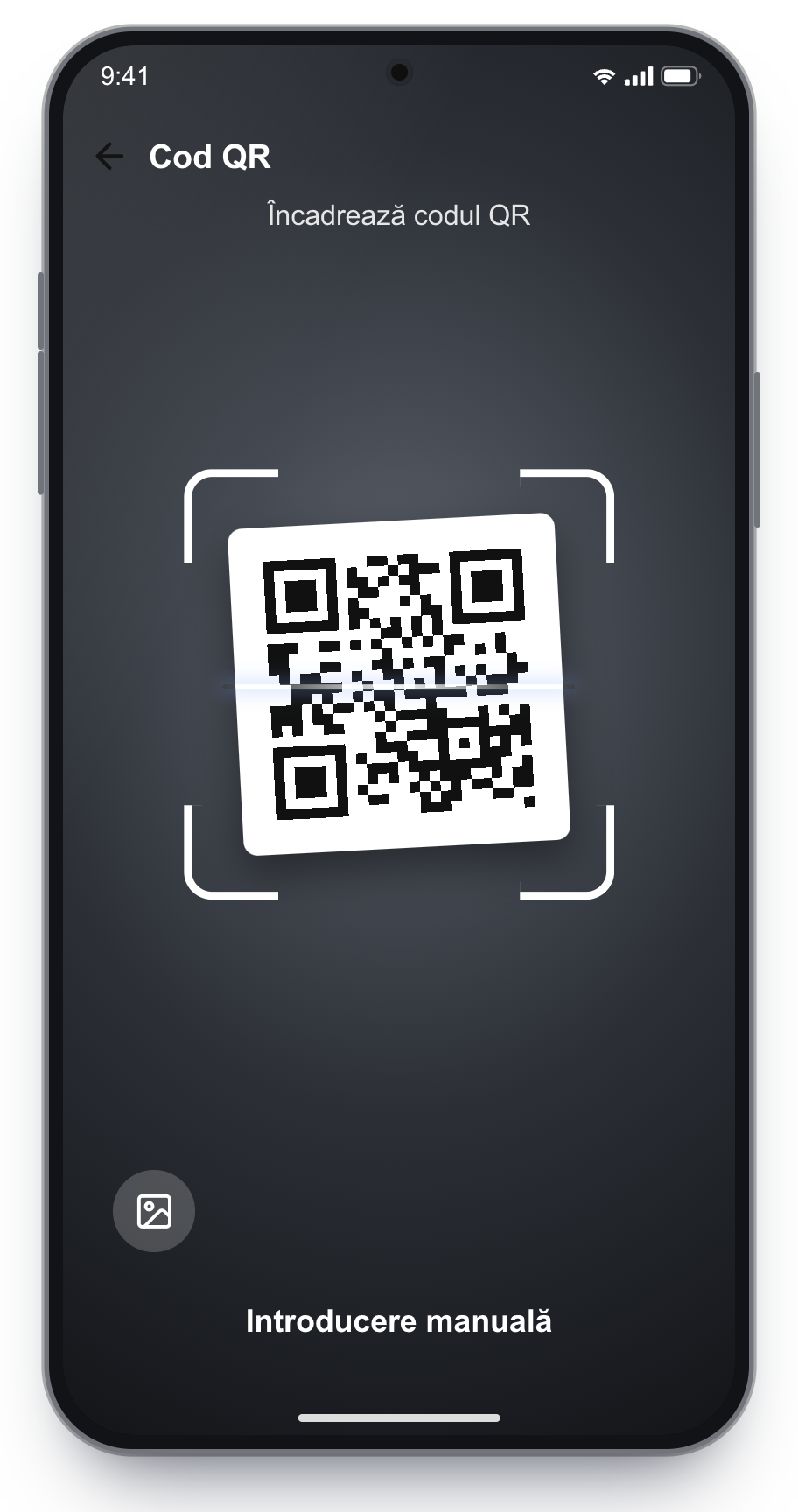
Scan the QR code from the email and wait for the eSIM Nelimitat line.
A code saved as a picture can be picked from the gallery.
No QR code: enter it manually
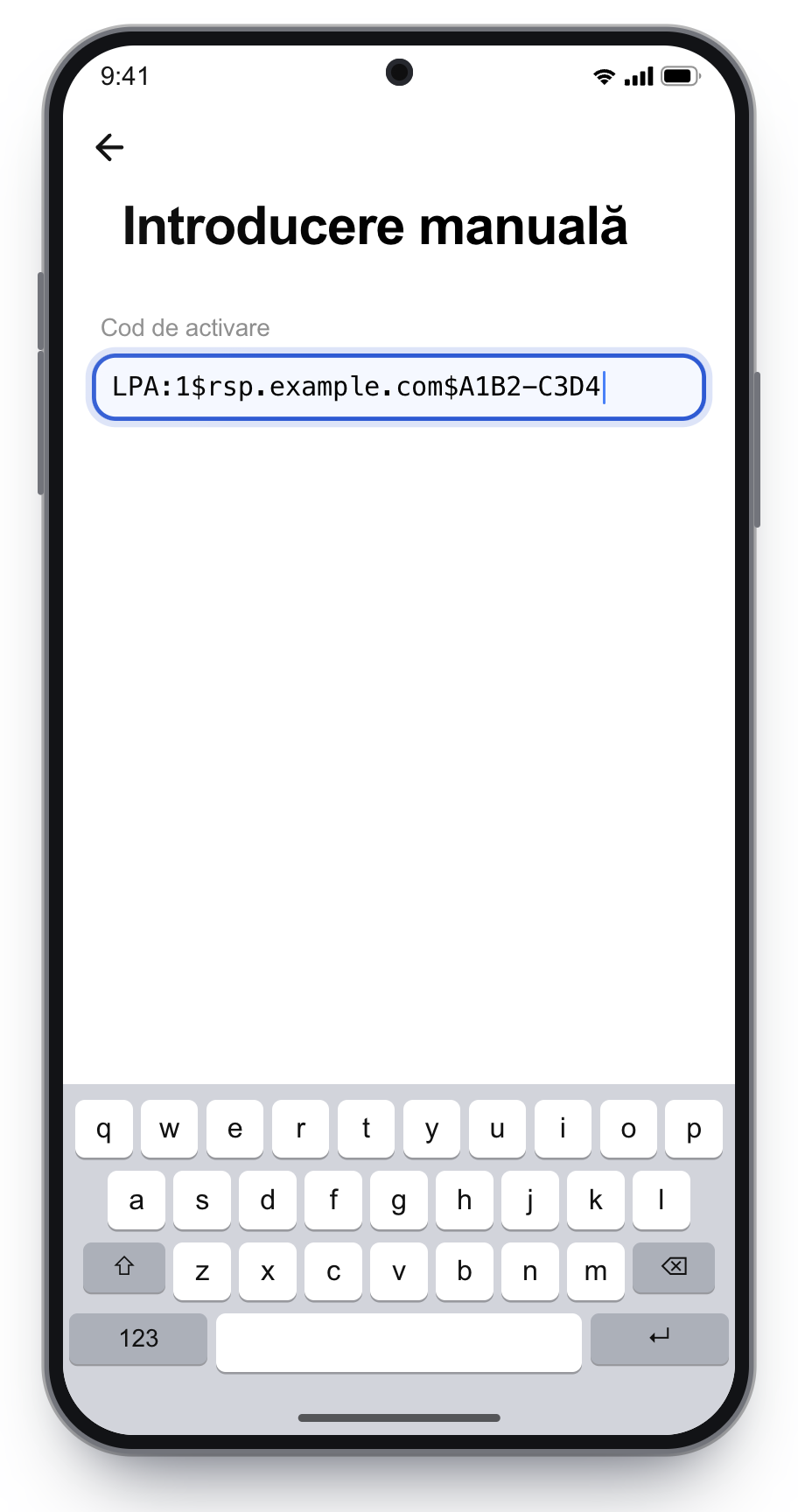
SM-DP+ Address and Activation Code, when the phone asks for two fields
The LPA code, when the phone asks for one code. It starts with LPA:1$
On the camera screen, choose manual entry.
Paste the codes from the email, exactly, with no spaces, then continue with activation.
Copy the codes exactly, with no spaces at the start or the end.
Turn it on: line, mobile data and roaming
After installation, the eSIM has to be on and selected for internet. Calls and SMS stay on your home SIM.
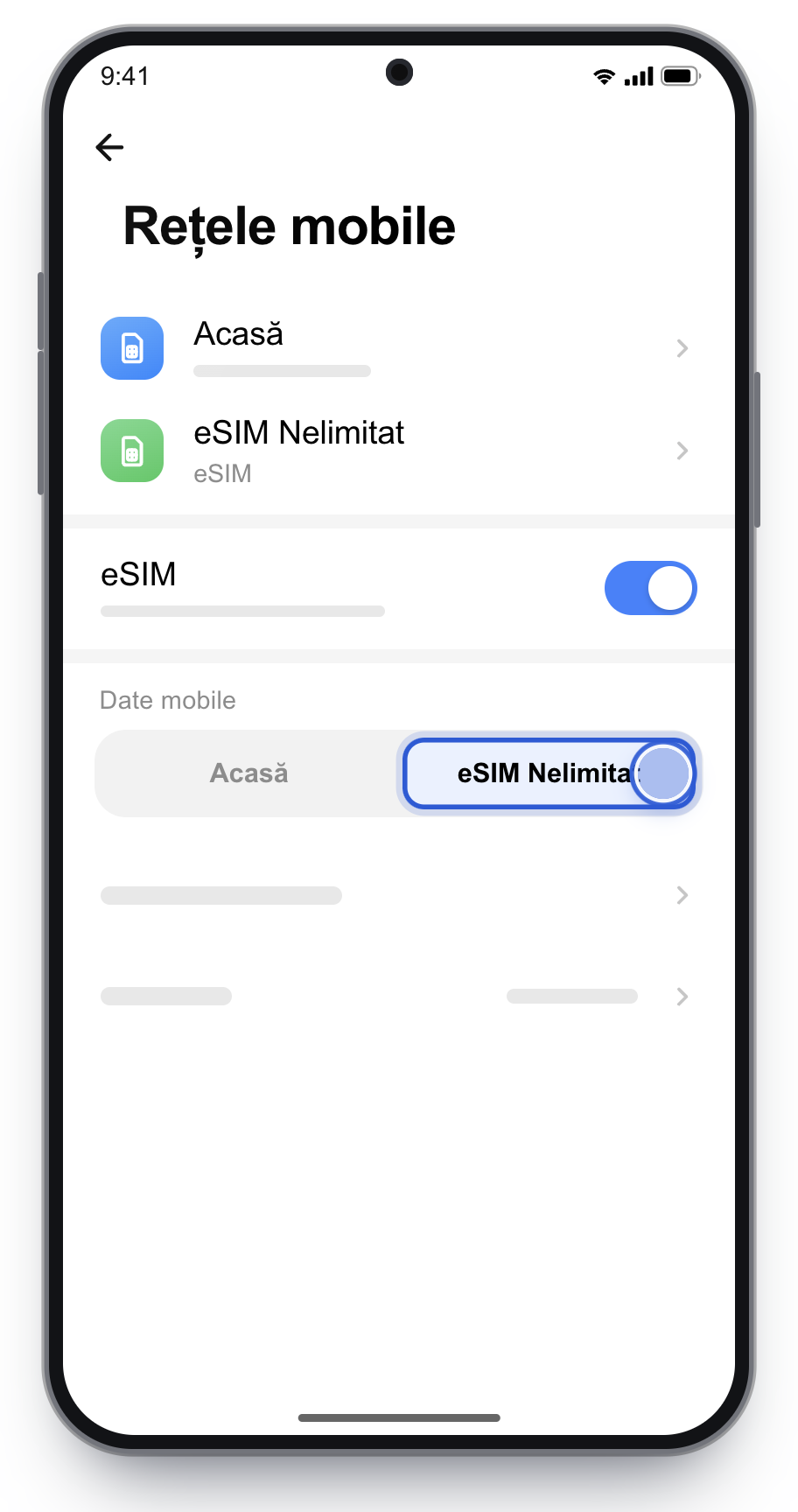
5
Choose eSIM Nelimitat for mobile data. Calls stay on your home SIM.
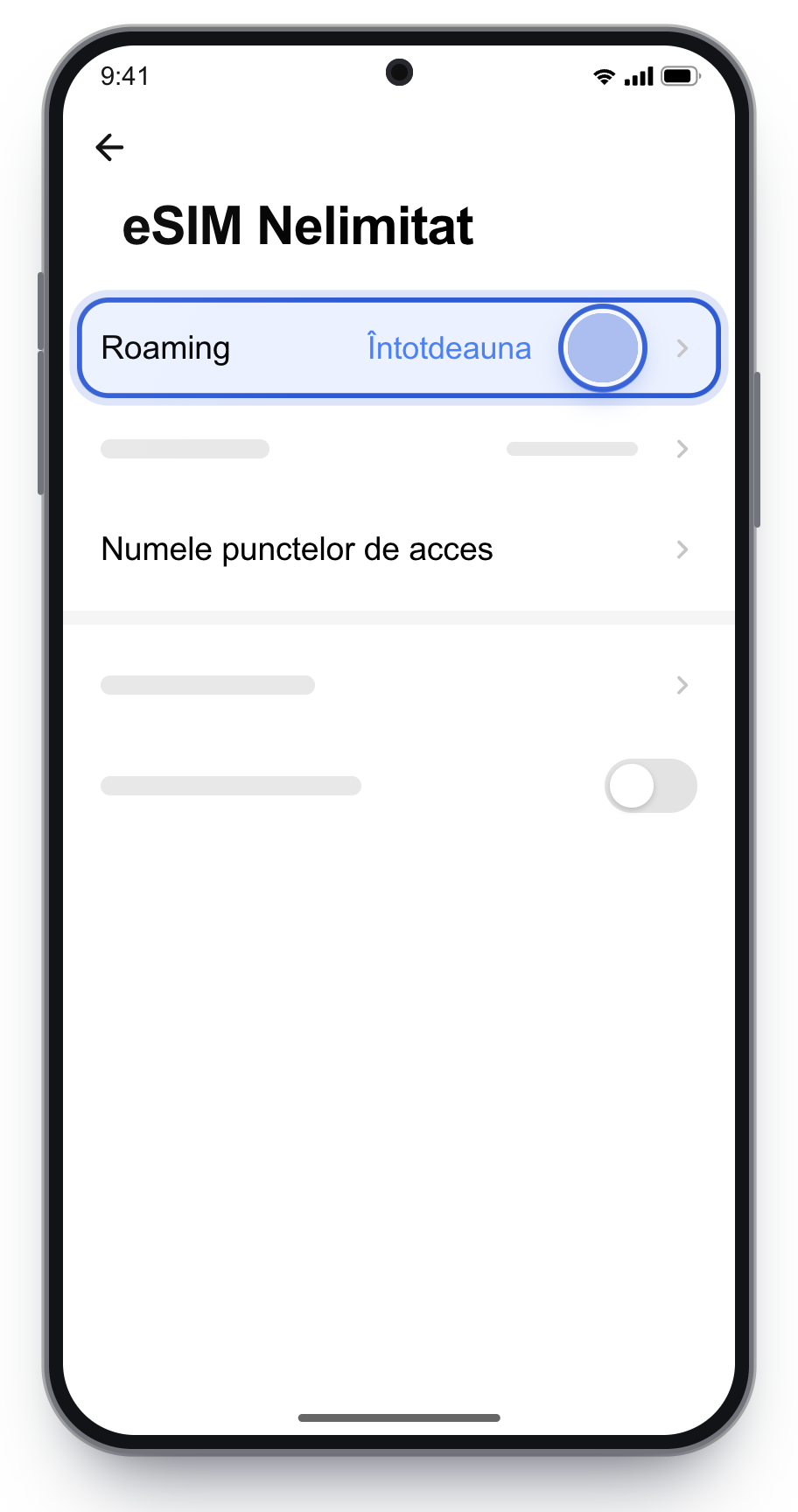
6
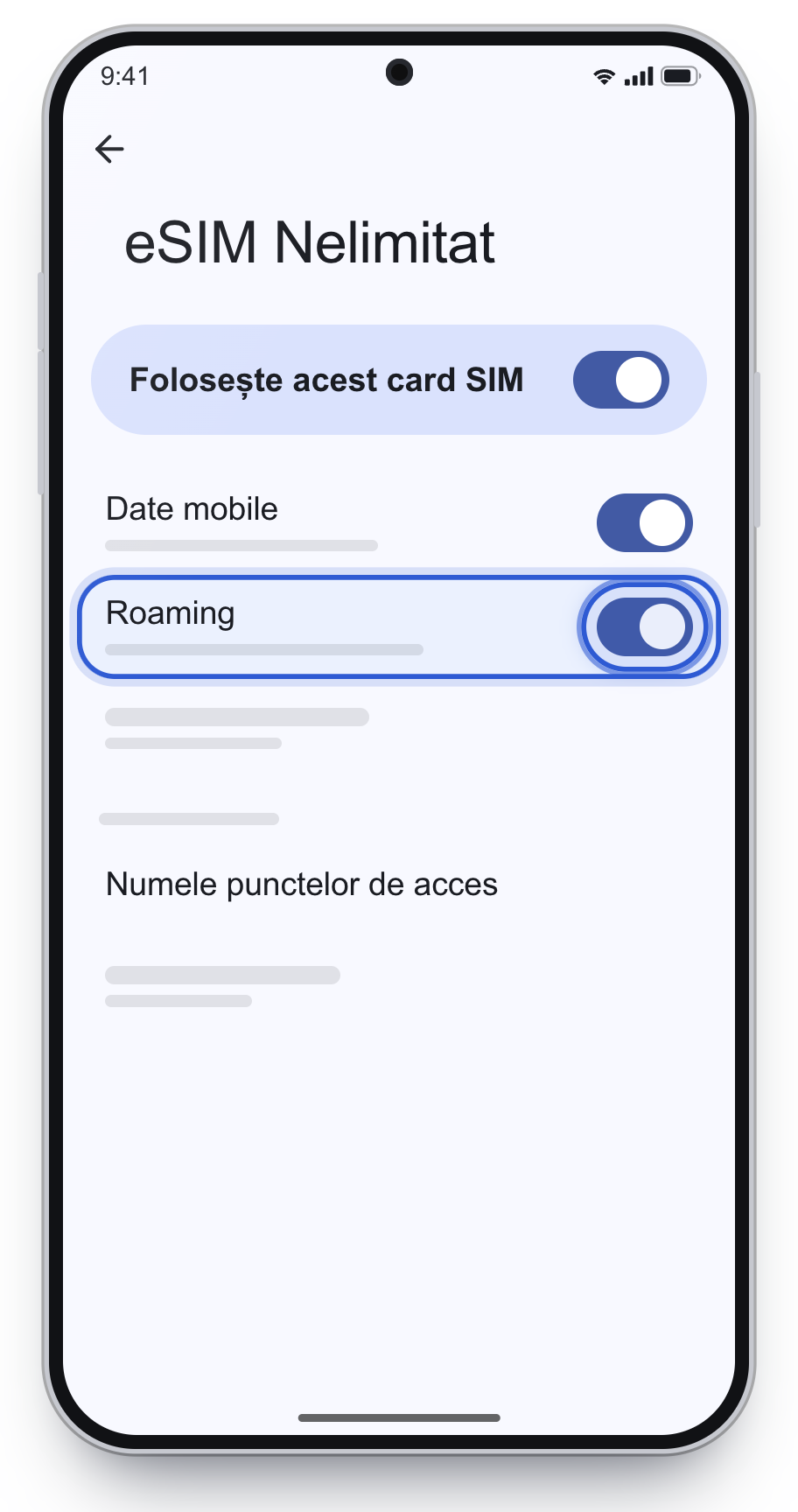
On the eSIM Nelimitat line, set Roaming to Always.
Turn roaming on only for the eSIM, not for your home SIM.
Turn on data roaming only on eSIM Nelimitat, not on your home SIM.
If you turn roaming on for your home SIM, your carrier can bill you for that traffic. Also leave automatic data switching off, so the phone does not use home-SIM data when the eSIM signal is weak.
Other Android
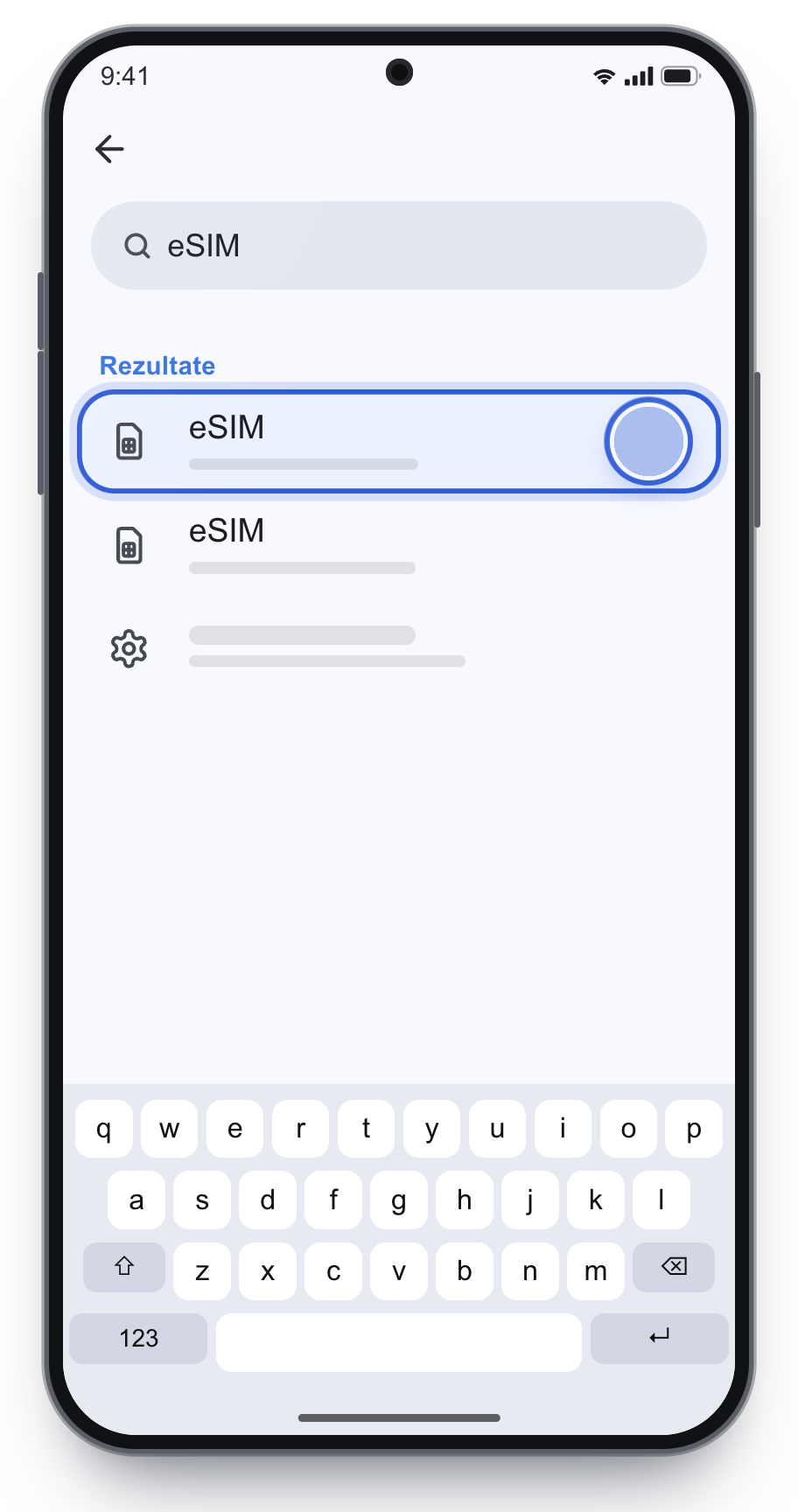
Motorola, OnePlus, Oppo, Realme, Vivo, Honor, Nokia, Sony and other brands. Search Settings for “eSIM”.
Install the eSIM
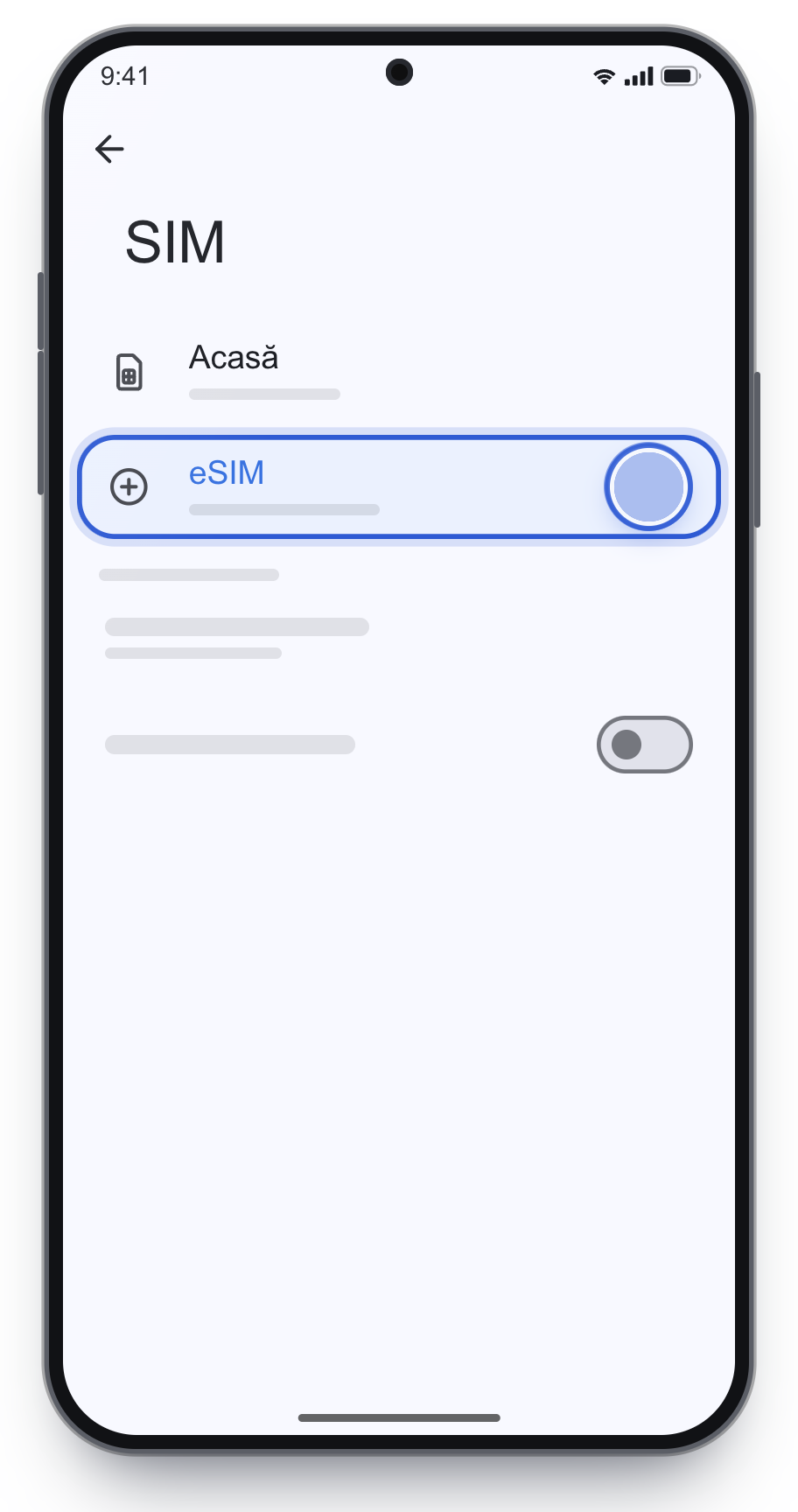
1
In Settings, search for eSIM in the bar at the top.
2
Open the result for adding an eSIM.
It is usually under Connections, Network & internet, Mobile networks or SIMs.
3
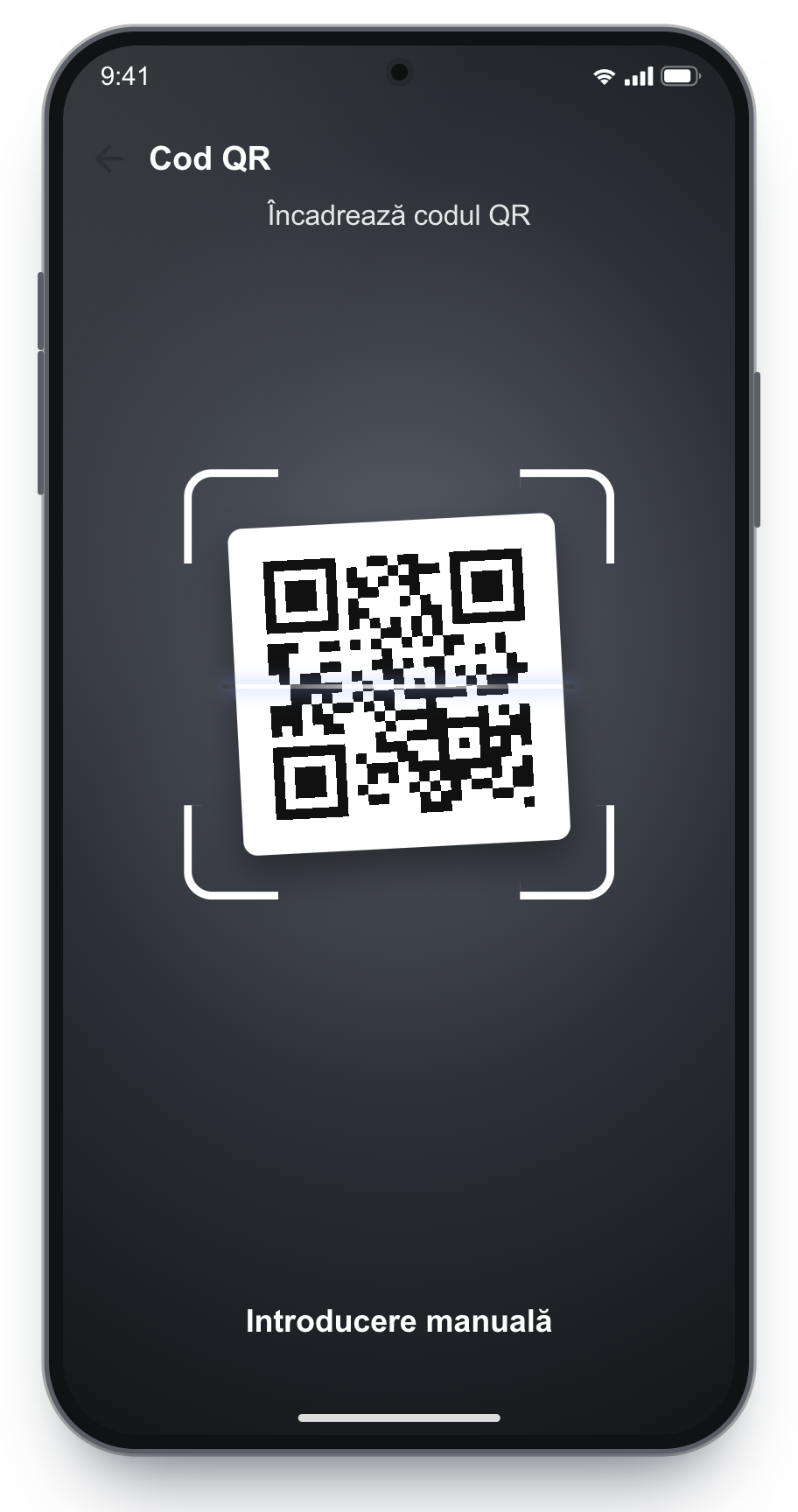
Scan the QR code from the email, or enter the code manually.
No QR code: enter it manually
SM-DP+ Address and Activation Code, when the phone asks for two fields
The LPA code, when the phone asks for one code. It starts with LPA:1$
On the camera screen, look for Enter code manually.
Paste the codes from the email, exactly, with no spaces, then continue with activation.
Copy the codes exactly, with no spaces at the start or the end.
Turn it on: line, mobile data and roaming
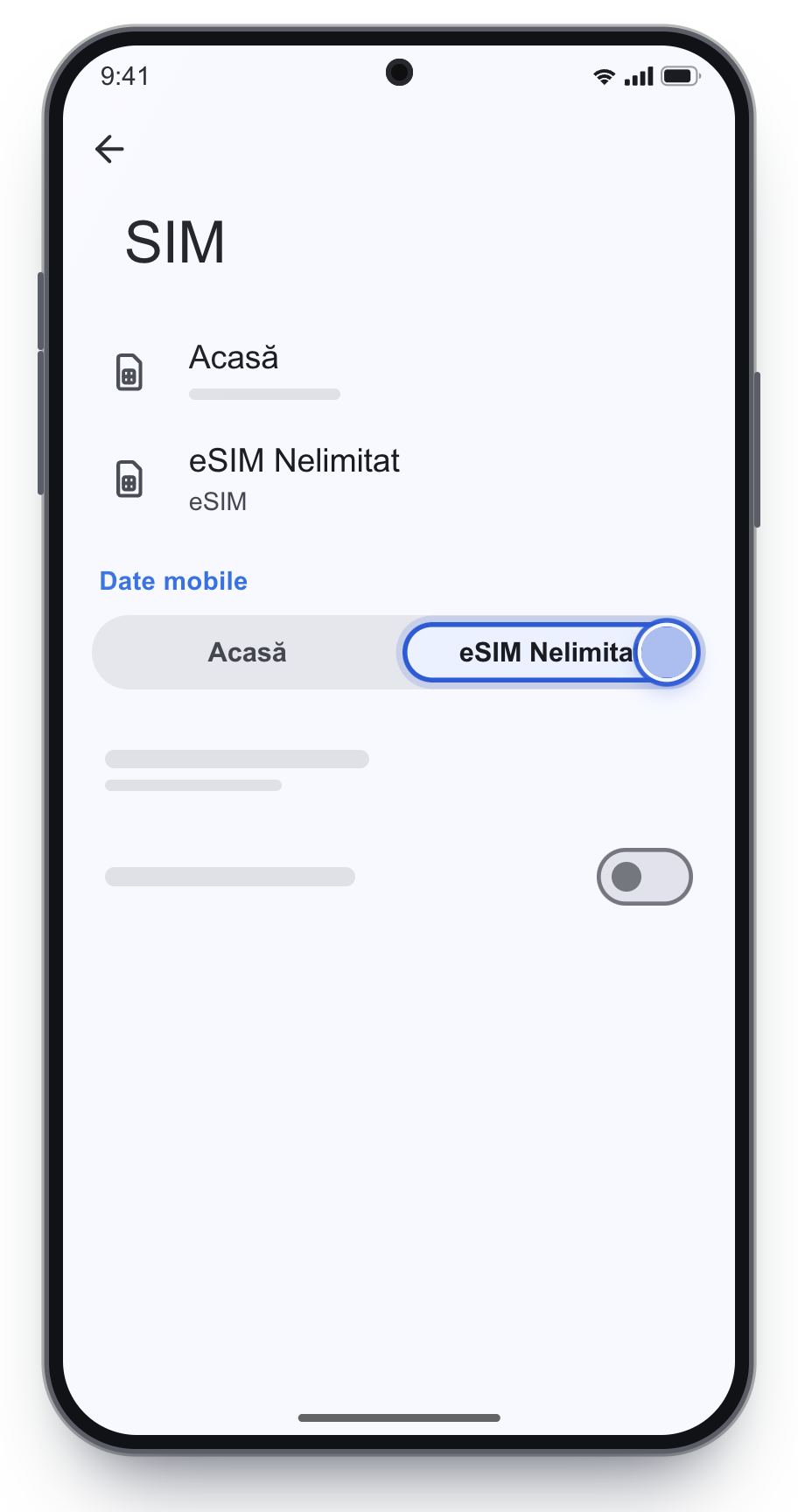
After installation, the eSIM has to be on and selected for internet. Calls and SMS stay on your home SIM.
4
Turn the eSIM on and choose it for mobile data. Calls and SMS stay on your home SIM.
5
Turn on data roaming only on the eSIM.
Usually in the line settings, under Mobile networks. Leave roaming off on your home SIM.
Turn on data roaming only on eSIM Nelimitat, not on your home SIM.
If you turn roaming on for your home SIM, your carrier can bill you for that traffic. Also leave automatic data switching off, so the phone does not use home-SIM data when the eSIM signal is weak.
A QR code can usually be used only once. Do not scan it again and again.
02
Do not delete the eSIM
After installation, do not delete it. It usually cannot be installed a second time, and top-ups land on the same line.
03
Roaming only on eSIM Nelimitat
Turn on data roaming only on the eSIM. Leave it off on your home SIM.
04
Calls stay at home
Choose eSIM Nelimitat for mobile data. Calls and SMS stay on your own SIM.
Common problems
The QR code fails or was already used
A QR code can usually be installed only once. If you see an error, do not keep retrying and do not delete anything. Message us on WhatsApp with the ICCID from the email.
The profile stays on “activating”
Turn the VPN off, switch to another Wi-Fi, restart the phone and try again. Install before you are roaming, while Wi-Fi is good.
No signal on the eSIM
Check that you are in a country covered by the plan, that the eSIM line is on, and that data roaming is on for the eSIM. Toggle airplane mode, then restart the phone.
I have signal, but no internet
The eSIM must be selected for mobile data, with data roaming on. Restart the phone. Only if it still fails, set the APN exactly as in the plan details.
I cannot find Add eSIM
The phone may not have an eSIM, or it may be locked to a carrier. Dial *#06#. If no EID appears, the phone has no eSIM.
I did not get the email
Check Spam and Promotions. If it is still missing, message us on WhatsApp with the order email address.
During installation, enter the 6-digit ePIN shown after purchase. After installation, unlock the eSIM with PIN 0000. The QR code for these plans can usually be reused, so you can move the eSIM to another compatible phone.
Menu names can differ a little by model and system version. The pictures are illustrations of the screens, so you can see what to tap.